9.04.2018

BMW 525i DME MSD80 diagnostic using BMW ICOM A2 ISTA-D

Purpose: To see the BMW ISTA-D diagnostic options is working or not, on 525i with an engine N53.

Diagnostic tool: BMW ICOM A2/ICOM Next with ISTA
Important: compare possibilities of ISTA D with INPA.


Credit: Original resource: bimmerprofs.com

Vehicle information:
Car: BMW 5 series E60 sedan 525i
Year: 2007/09
Engine: N53
EURO
Manual
DME: MSD80

The test:
(click to enlarge all images)

ISTA-D is identifying the vehicle
ista-d-msd80-diagnostic-1
and reading FASTA information
ista-d-msd80-diagnostic-2
the basic menu is available.

Service procedures and data, intended for the engine, are available in two groups:
  1. a) basic menu: Vehicle management/Service function/Powertrain/Engine Electronics
  2. b) Call up ECU functions menu of the engine management unit.

In the basic menu you can choose:
  1. a) viewing data correction of cylinder Rough run and Stoichiometric mixture;
  2. b) coding the injector data;
  3. c) coding new NOx catalytic converter and NOx sensor, activate Desulphation session;
  4. d) delete adaptations;
  5. e) perform misfire/Rough run test for cold engine and view the “opinion” of DME, which engine has problems with smooth running.

In DME Call up menu you can choose:
  1. a) view live data;
  2. b) perform activation tests for several knots.

Now, start the review with DME Call up menu.
To enter it, click with Mouse on DME icon on the “tree” of units and press the button “Call up ECU function”.
ista-d-msd80-diagnostic-3
Call up menu contains three basic choices:
  1. a) identification: basic data of ECU unit;
  2. b) diagnosis scan: live data;
  3. c) component triggering: activation/test blocks.
ista-d-msd80-diagnostic-4
“Identification” menu is very clear, so we move to diagnosis scan menu – content of it is seen in the image above.

The content of Component triggering submenu :
ista-d-msd80-diagnostic-5
Unfortunately, the amount of test blocks is tiny. As can be seen, it’s possible to test the pressure of the low-pressure pump, in the injectors menu: switch off any of cylinders, switch on the water pump and electric fan.
Blocks of engine performance modes, Lambda probes, generator, VANOS, EGR and many other important knots are not available.

Diagnosis scan submenu.
  1. a) fuel pressure (high pressure);
  2. b) fuel pressure (low pressure);
  3. c) idle;
allows to view exact values of the parameter and are not very interesting. Only remark (it refers to all analog/live data values, displayed by ISTA):
  1. a) data representation is in small size, it’s hard to see the data, for example, during the driving session;
  2. b) main part (with rare exceptions) of data have no reference value, no min/max limits displayed; no explanation for specific data;
  3. c) bar type indicators are not used – they would ease the viewing of variables.

The content of Diagnosis scan submenu, choosing ”Motor operating values”:
ista-d-msd80-diagnostic-6
ista-d-msd80-diagnostic-7
To read the required parameters, they have to be chosen (it/they will color in blue) and press the button ” Read status”.
Example, how does a viewing of live data look’s, using ISTA D:
ista-d-msd80-diagnostic-8
Unfortunately, data are opaque – there is no visible separation, no ref/min/max limits, no bar indicators.
Several disadvantages of menu:
  1. a) oil pressure – no required oil pressure displayed;
  2. b) no PWM for keeping up the pressure is displayed;
  3. c) data of detected pressure are displayed with an offset of -1000hPa.

The content of submenu, choosing operating values of the N53 series engine:
ista-d-msd80-diagnostic-9
Live data of these parameters:
ista-d-msd80-diagnostic-10
This submenu has “several” disadvantages:
  1. a) the engine performance mode is displayed, but no Lambda values, with which the engine works, can be seen;
  2. b) no possibility to overlook data during the desulphation process;
  3. c) no PWM both for the low-pressure and high-pressure system can be seen – no information of system’s ability to hold the pressure;
  4. d) no Offset values for NOx sensor data are visible, no reported Lambda values (wide-band and narrow-band).

Data of “Operational smoothness values” submenu:
ista-d-msd80-diagnostic-11
In this menu, Rough run value min/max values ( +/-200) are displayed. According to the software release, in case of the normal engine performance, the values fluctuate in limits of +/-0.2, for some releases – only within limits of 0.02. It means, 0.1 or even 0,01% of max displayed! Conclusion – these indicated values are just confusing the user!

It’s not even worth to mention, that math, which would describe the coefficient ”engine order 0.5/1.0/1.5”, is not even present.

Content of ”Oxygen-sensor control” submenu:
ista-d-msd80-diagnostic-12
This submenu has “several” disadvantages:
  1. a) multiplicative adaptations are not displayed at all;
  2. b) Lambda value for wide-band probes is not calculated/displayed; no description, how to interpret “voltage” indications;
  3. c) PWM of probe heating is not displayed, from the status description it’s not clear, is the probe being heated or is already heated;
  4. d) no Nernst resistance for probes is displayed, chemical activity of probes cannot be seen; no manual control of probe heating is possible;
  5. e) the engine performance mode (requested/confirmed) is not displayed;
  6. f) required Lambda values and their conformity to measured are not displayed.

No data available about:
  1. a) injectors: learnbits;
  2. b) injectors: real time values (opening time; multiplicative adaptations; voltage; energy, etc);
  3. c) injectors: mechanical and chemical tests/results.

Submenu ”States” contains some of the status bits:
ista-d-msd80-diagnostic-13
Unfortunately here the viewing of engine Live data ends. As you can see, the amount of displayed data is many times less than with INPA, and displayed data cannot be viewed easily.

Vehicle management/Service function/Powertrain/Engine electronics menu,
ista-d-msd80-diagnostic-14
Idle speed/Idling quality submenu:
ista-d-msd80-diagnostic-15
Rough running values:
ista-d-msd80-diagnostic-16
Rough run values for correctly performing engine display lasting disbalance, therefore it’s not clear, what are these data. Possibly – applied Offset type corrections for each injector to reach smooth performance.

Stochastic irregular operation data:
ista-d-msd80-diagnostic-17
Also regarding these data – no information. In ideal scenario – all values are targeting 0? Or, most probably: all values are targeting 50; increased value – decreased mechanical efficiency.
We can only pay our condolences to a specialist of the dealer center, who has to work with such “data”.

Delete adaptations submenu:
ista-d-msd80-diagnostic-18
Unfortunately – no information, which menu deletes which group of adaptations.

Also, information regarding stored error messages is more than modest:
ista-d-msd80-diagnostic-19
For example, in the existing situation, INPA freeze-frame will additionally display:
  1. a) engine performance mode (Homogeneous/Homogeneous lean/Stratified charge);
  2. b) engine status (work or heating up);
  3. c) offset, multiplicative adaptation and integrator values, etc.

Data for separate knots can be seen into appropriate functionality blocks, as an example, we will view test block of VANOS:
ista-d-msd80-diagnostic-20
After choosing this test module, the menu opens:
ista-d-msd80-diagnostic-21
The detected position of VANOS can be seen:
ista-d-msd80-diagnostic-22
It is possible to perform test block, which tests the ability of VANOS knot to maintain the required position in one, fixed position:
ista-d-msd80-diagnostic-23
After performing such tests, the diagnostics specialist has to take the decision by himself, does the VANOS performs correctly – ISTA displays following menu of suggestions:
ista-d-msd80-diagnostic-24
ista-d-msd80-diagnostic-25
As you can see, this menu doesn’t give exact answers.
Additionally, there are no possibilities to choose the position of camshaft manually, evaluate the PWM of the valve, it’s jittering.

The situation with, for example, checking the oil pressure is even sadder. There is no possibility to compare the inquired and measured oil pressure, no possibility to evaluate the PWM of oil valve. No test block, which could be started. Only testing option, offered by ISTA: evaluation of PWM of the valve with an oscilloscope. And, if rectangular impulses are observed, ISTA reports, that everything is in working condition!
ista-d-msd80-diagnostic-26
Everything is in order, not taking into the account the PWM value, not taking into account it’s jittering? Impressive!

It is regrettable, that the dealer specialists are forced to work with such weak diagnostic tool. INPA options for MSD80 diagnostics are incomparably wider, but, for unknown reasons, INPA is banned for using in dealer service centers.

8.29.2018

BMW Battery Registration Guide using ICOM ISTA

BMW Battery Registration


BMWs equipped with an IBS need to know when you replace the battery, battery capacity and battery type must be registered! YOU DO NEED TO REGISTER battery replacements on BMWs with an IBS (Intelligent Battery Sensor).


Why register the battery replacement?


After installing a new battery, the BMW ICOM ISTA service function ‘Register battery replacement’ must be run. The registration of the battery replacement is required to inform the power management (software in engine electronics and intelligent battery sensor) that a new battery was installed in the vehicle. If the battery replacement is not registered, the power management will not function properly and can lead to functions being limited by individual electrical consumers being switched off or having their power consumption reduced. Power management will charge the new battery as if it’s the old worn out battery, causing premature failure of the replacement battery.

Important! If the new battery is not registered, incorrect readings may appear in the display of the on-board computer due to old data in the power management system (check control message ”Recharge battery” appears even though the battery is new).
bmw-icom-register-battery-1

A service function informs the power management in the Digital Engine Electronics (DME) or the Digital Diesel Electronics (DDE) of a battery replacement. The following operations are performed:

-The current mileage reading is stored for the battery replacement.
-The stored measured values (battery charge statuses, current, voltage, temperature, etc.) are deleted.
-The power management is initialized.
bmw-icom-register-battery-2
Available registration options:

1. Replacing battery with exact same type – (Simple registration)
2. Replacing battery with same type but different capacity – (Registration/Conversion)
3. Replacing battery with different type – (Programming/Conversion/Registration)
4. Updating software of complete battery management system

Changes to the charging profile also affects how the Start/Stop system works for vehicles with EfficientDynamics

Car 1:

You’re renewing the battery with identical replacement. You register replacement to let the car know that the battery is new and the charging profile is adjusted accordingly. If you don’t the vehicle will charge for an old battery and cause premature failure.

Car 2:

You fit an AGM in place of a Standard LA battery (or vice versa). If you don’t register the replacement then it will toast the new battery for similar reasons to Car 1 but even worse as the charging profile will be for the incorrect type battery and cause even faster battery failure. In this case you MUST use a ‘conversion’ to change the battery type. Then, register a replacement.
bmw-icom-register-battery-3
Notice! Determination of state of charge after a battery replacement

After a battery replacement, the vehicle must be left standing for at least 3 hours with its new battery. It is not possible to establish with any reliability the state of charge of the new battery until that time. Possible Check Control messages about total discharge of the battery are then no longer displayed.
bmw-icom-register-battery-4
Notes for disconnecting and connecting battery

The scope of application of some systems may be restricted after a power supply interruption. Likewise, individual settings may be lost.

Settings or activations must be carried out, depending on the equipment specification. For example:
Vehicles with automatic engine start‐stop function (MSA): MSA function is active only after learning period (vehicle must not be woken for a period of approx. 6 hours
E46 Perform (four-wheel drive) / E53 / E83: steering angle sensor adjustment
-If necessary, activate slide/tilt sunroof
-If necessary, activate power windows
-If necessary, activate mirror with compass

Only E60, E61, E63, E64, E70, E71, E90, E91, E92, E93: mount steering angle

Skipping the battery registration process can dramatically shorten the life of a battery in these vehicles, be it an AGM or a conventional battery. Several issues can cause premature battery failure, see post on Energy Diagnosis, but on a late model BMW, skipping battery registration can be one of them.

8.12.2018

How to do BMW coding with ISTA on MacBook Pro

Here are the details of my setup of MacBook Pro with VW Fusion – Windows 10 or Bootcamp, both working for BMW coding with ICOM software.

Hardware: 2015 Retina Macbook Pro 16GB RAM, 512GB SSD
Software: VMWare Fusion 10


VM Specs:
Windows 10 64Bit
4GB RAM
Thinly provisioned 200GB VM. (Thin means it only takes the space it is using but Windows thinks it is 200GB total.)

Software working on VM:
BMW Standard Tools 2.12 (NCSexpert, WinFKP, INPA, etc)
ISTA-D (Dealership Diagnostic Software, I did not install ISTA-P due to space concerns)
E-Sys (For newer Fxx/Gxx/Ix cars)

I back up my VM on an external hard drive and I take snap shots of the VM in case upgrades to the software fails and breaks.

I am very happy with this setup.


Another option instead of VM fusion is to bootcamp the mac. That’s what I’ve done also. It partitions the hard drive into separate drives, allowing you to boot the Mac up into windows natively. Then used bimmergeeks.com software packages. It’s very clear and easy to understand. It’s also been condensed some and has the most recent updates in place….just make sure you have enough HD storage in general before doing any of this…and get a good cable such as the cable off http://www.obdii365.com/wholesale/bmw-inpa-k-can-with-ft232rq-chip.html…don’t want to mess around with crappy cheap amazon cables.


BootCamp

Pros:
  1. Free + windows 10 license
  2. All system resources are utilized by Windows only.
  3. Acts like a windows machine

Cons:
  1. Requires permanent space allocated to BootCamp
  2. Requires rebooting if you ever want to go back to Mac
  3. Unable to write into MacOS side of things without 3rd party drivers


VM

Pros:
  1. Snapshots
  2. Space allocated is only like a file, so free space is still utilized by Mac
  3. No need to restart to get into Windows for something.

Cons:
  1. Not free, and annual upgrades start to cost a lot
  2. Shares resources with MacOS which can be limited if the Mac doesn’t have enough RAM, CPUs etc.
  3. A little more complicated in initial setup sometimes.


Both have its merits and I ultimately like VMs when the mac has enough resources to run it.

7.29.2018

BMW ENET E-sys F, G, I Series Coding Guide

Anyone can do it if you report well to beginners. This guide is tralsted from Korean. Just for sharing purpose. You are at your risk.


Materials

-PC (laptop, desktop, etc.)

-program

- coding data (Psdzdata or SDP)

-cable


1. PC: OS Win 10 can be up to 64bit

2. Programs

  -BMW program: E-sys

  -BMW and others: E-sys Launcher Premium

 ※ There is a paid version E-sys Launcher Pro version, but if you are coding only my car, it is enough for Premium version.


3. Coding data (Psdzdata)

To code a vehicle, you need to have the data for that vehicle.

The coding data required for F, G, and I series is called Psdzdata (or SDP).

- Lite (for coding), Full (for programming) → Lite version is used for coding.


4. Cable (Interface)

The cable (interface) for connection with F, G, I series vehicles is called "ENET cable".
bmw-enet-cable

or ENET (Ethernet to OBD) Interface
ENET-Interface

BMW ICOM is a little bit specialized, but E-net cable is enough for coding only.
bmw-icom


▶ Install the program

• Preinstallation program

      - Microsoft Netframework 4.5 or later: LINK

      - JAVA latest version: LINK

• E-sys installation (E-sys 3.27.1 or E-sys 3.30.1): LINK

• E-sys Launcher Premium 2.8.0: LINK


▶ Loading coded data (Psdzdata)

☞ Shortcut Latest Psdzdata 4.12.12 Lite: LINK

☞ Unzip the downloaded Psdzdata and copy it to C: \ Data \ psdzdata
upzip-Psdzdata

※ Psdzdata Target / Chassis code
psdzdata-chassis-code


▣ Normal coding (FDL coding)

Run the E-sys LauncherPremium to proceed with the coding.
→ Automatically recalls E-sys.
fdl-coding-1
fdl-coding-2

☞ Coordinate file by model: LINK
☞ CheatKey file by car: LINK (from 'Coding Sharing Center')


VO (FA) coding (Vehicle Order)

Used to change the option status of the vehicle

☞ 'FA (VO) coding' go to: http://blog.obdii365.com/2018/04/27/enable-bmw-f46-cruise-control-by-vo-coding/


※ TokenMaster's NCD / CAFD Tool V 0.5.2

Useful program to know the contents of NCD / CAFD file, comparison, FA, etc.

☞ NCD / CAFD Tool V 0.5.2 Program: LINK


☞ 'How to use NCD / CAFD Tool': http://www.bimmerfest.com/forums/showthread.php?t=749668


If you want to study about other coding, please refer to the forum.

http://www.obdii365.com/producttags/bmw-enet-cable.html

7.15.2018

BMW F Series ISTA failed to connect to ENET Cable Solution

Problem:
I have a F25 X3 to which I am trying to connect it to ISTA for diagnostics. The ENET cable I know works because it connects to E-SYS just fine for coding.
The ISTA program i have works fine as I use it when connecting to my E90 via a K+DCAN cable.
So I have changed the setting to ENET as shown here;
bmw-ista-enet-cable-1
I then click on READ OUT VEHICLE DATA and then SETUP CONNECTION
bmw-ista-enet-cable-2
So ISTA does actually find my car as it shows the VIN, etc
bmw-ista-enet-cable-3
But then it struggles to identify the vehicle.
bmw-ista-enet-cable-4
What am i doing wrong? Any ideas for a fix?


Solution:
Your edibas.ini is messed up. Try this one:

FLY: There are 2 ways to connect ISTA to ENET cable.
There is 2 option.
1-HO-ICOM/ENET direct connection. You can check connection via ZGW search-You will see IP, VIN, etc-then Your network adapter is setup correctly and connection is fine
I use it for enet
the last ENET connection
HO-ICOM/ENET direct connection
then you choose ENET and you have a connection
without the intermediation of EDIABAS.

2-Ediabas Standard Settings, EDIABAS.ini must setup for using with ENET
You must use “Ediabas Standard Settings” with BMW Enet cable and use Ediabasconfigurator to connect to Enet.
With Ediabas Configurator 2.0 is very easy to create a EDIABAS.INI no matter STD: OBD or ENET.
ediabas-configurator


http://blog.obdii365.com/2018/07/15/bmw-ista-failed-to-connect-f-series-enet-cable-solution/

6.28.2018

How to Resolve BMW ICOM ISTA/D license expired Error

Many BMW ICOM users will no doubt have encountered a situation where they have had Rheingold ISTA/D running successfully on their computers, only to later encounter the situation where they can no longer access the software and get a license expired message. The majority of suggestions to resolve this situation found on the internet suggest that users adjust the bios setting of their machines to a date before the original license expiry date but as the result of an enquiry from another user, I decided to post my resolution of this problem (which has been tested and found to work on machines running both Windows 10 and XP Operating systems):-

1. Run Regedit
2. Open HKEY_LOCAL_MACHINE
3. left click SOFTWARE
4. left click BMWGROUP
5. left click ISPI
6. left click Rheingold
7. on the right hand panel of the screen, left click Licence and choose Modify
8. Be careful to modify only the entries on this line as described...use the left arrow key to scroll along the line to a date format entry, which is followed by the words Package Expire and change the date to 2072-09-20

9. After you have changed the package expiration date, continue to use the left arrow key to scroll further back along the line until you find another date format entry, which is followed by the word Expiration (this date will be identical to the original entry that you altered during the last step) - change this date to 2072-09-20

10.When you have completed the above changes, collapse the registry editor back to show only the HKEY menus, then close the registry editor and restart your computer.

11. CONGRATULATIONS, your Rheingold licence is now current until 2072-09-20. Note when editing the expiration date for ISTA, you should maintain the original date format (usually YYYY MM DD) - as some packages use an underscore and some use a hypenated seperator for date entry values.


If you can't find it at that registry entry, try here-
HKEY_LOCAL_MACHINE\SOFTWARE\Wow6432Node\BMWGroup\ISPI\Rheingold

6.13.2018

How to set up EDIABAS using ENET Ethernet connection?

Here's the instructions for operating BMW EDIABAS software applications under use the ENET cable Ethernet connection.


Version 1.01
Connection EDIABAS and ZGW:
Hardware requirements:
- EthernetCard (RT45)
- ZGW (Central Gateway)
- Patch cable (standard network cable with 1: 1 connection)
ZGW controls the "Autosense" function, i.e., CROSSOVER_cable is possible, but not
necessary.
(Minimum cable requirement: technical spec. Of a CAT5 cable must be fulfilled)

Free download BMW INPA F xx & EDIABAS


Please note :
Settings in Ediabas.ini:
Interface = ENET /(also Proxy: ENET is possible // / under no circumstances: = STD:ENET)
;XETHERNET Configuration
[XEthernet]
RemoteHost = Autodetect->> For a direct connection (option 1)
or
RemoteHost = <IP-Adresse des ZGW>->>When connecting to a DHCP server (option 2)
DiagnosticPort = 6801
ControlPort = 6811
TimeoutConnect = 20000
TesterAddress = F4,F5
HeaderFormat = 0
setting-ediabas-ini-1
setting-ediabas-ini-2

Option 1: direct connection to the PC
The ZGW is connected directly to the computer (no DHCP server).
No IP address may be assigned to the computer (obtain IP address automatically).
"RemoteHost = Autodetect" in Ediabas.ini (see above)
After a short time, XP reports limited connectivity on the network port.
ediabas-enet-setup-1
This message can be ignored.
Communication with the ZGW is now possible via EDIABAS.

With the tool "ZGW_SEARCH.exe" (can be found under "EDIABAS \ Hardware \ ENET") it is possible the current network parameters of the CGU (see also (*) under option 2).


Option 2: Connection via a DHCP router
The ZGW and the PC must be in the same number range.
With the tool ZGW_SEARCH.exe the current IP address of the ZGW can be determined.
EDIABAS must be closed.
Activate ZGW_SEARCH.exe u. Press "refresh": it should be followed by the info window with the
IP address filled, appear.
ediabas-enet-setup-2

If the recognition does not succeed, it helps to connect the ZGW directly to the computer (as under
Option 1 described) and let the detection run.

Then connect the ZGW back to the network (ZGW_SEARCH is still active / do not quit!) And
press the button <refresh> again.

The current IP address will now be displayed.

In the Ediabas.ini the current IP address must be entered (can be, in case of longer separation
from the network, change).

Communication with the ZGW is now possible via EDIABAS.

(*) "Tool ZGW_SEARCH.exe" can be found under "EDIABAS \ Hardware \ ENET".
To work properly with the ZGW_SEARCH.exe tool, it is necessary to have a
"MSWINSCK.OCX" file installed on the same LW in the same folder as ZGW_SEARCH.exe
is.

Network Connection Details:
• Mac address (physical addr .: 00-16-35-A3-E3-AF), explanation
• IP address, for example: 10.253.117.126, explanation, Ω
• subnet mask, for example: 255.255.0.0, explanation
• Default gateway, for example: 10.253.117.8, Explanation, Ω
• DNS server, for example: 160.50.250.8, explanation
• host name, for example: WMUC247843, explanation, Ω
• DHCP server for example: ..., explanation

Ω: Addresses / names must be unique


Checking network connections:
Go to Control Panel-> network connections
ediabas-enet-setup-3

Network Connections
ediabas-enet-setup-4

The LAN connection appears, right-click on LAN_connection - Actions window
opens
then click Properties - the following window "Properties of LAN connection" opens.
ediabas-enet-setup-5

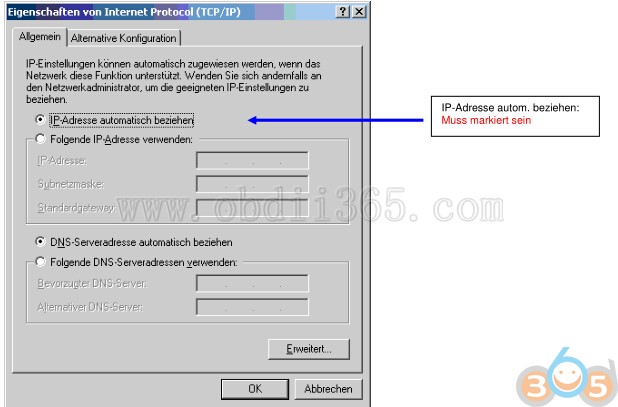
1) Internet Protocol (TCP / IP) must be checked and be selected

2) Press the button:
Properties of Internet Protocol (TCP / IP)
Opens (see below)
ediabas-enet-setup-6
IP address automatic Respectively:
Must be selected
ediabas-enet-setup-7
Auto-assigned, private IP address:
Must be selected

Furthermore, a connection test can be carried out by means of "An-Pingen":
1) Open DOS window: go to "START" >> "click on execute" >> enter "cmd" >> OK.
ediabas-enet-setup-8
2) DOS_ window is open:
3) Behind C: \ Documents and Settings \ Q ......> ping and IP address or host name of the ZGW
enter - confirm with "Return".
ediabas-enet-setup-9

The positive connection test looks like shown above.

This is just proof that there is a physical / electrical connection.
Of crucial importance are and remain, starting at the beginning of the document,
illustrated setting / connection parameters.


Known handling error messages:
Error 1: Required dll file "MSWINSCK.OCX" is missing.
ediabas-error-1

The "MSWINSCK.OCX" must be in the same folder as "ZGW_SEARCH".
MSWINSCK.OCX and ZGW_SEARCH.exe under EDIABAS \ Hardware \ ENET


Error Fehler 2: Net-0012: NO CONNECTION
ediabas-error-2-no-connection

Here is to check whether the ZGW is really connected to the Ethernet (via DHCP server), whether it
is turned on or it is the required entries i. d. EDIABAS.ini (see above) again to check / correct.

www.obdii365.com

Related article:
Download and Set up INPA for BMW F series coding
http://blog.obdii365.com/2018/06/13/connect-ediabas-to-bmw-using-ethernet-connection/