Here is the guide to set up and flash a DME or EGS. Look at the steps starting at "Open up WinKFP" below.
- Install BMW Standard Tools 2.12 (EDIBAS, INPA, WinKFP, NCS Expert) and ensure they work with your car.
- WinKFP 5.1.6 (no earlier version than this)
- INPA 5 or higher
- Get the daten files (download, extract from Progman or Ista/p).
- E39 daten files: https://rapidshare.com/files/1672164095/E39_V41_Daten_Files.rar
- E46 daten files: https://rapidshare.com/files/4196534502/E46_V41_Daten_Files.rar
- See these instructions for extracting the daten files from Ista/p.
- http://forums.bimmerforums.com/forum/showthread.php?1590483-I-need-files-to-work-with-WinKPF-help-me
- Have jumper cables to another car battery supplying a minimum of 10A power.
- Connect the K-line cable to OBD port on car and USB port on computer.
- Turn the ignition key to position 2.
- Open up WinKFP.
- Select Configuration
- Uncheck Fast baudrate.
- To not increment the flash update counter, uncheck all UIF checkboxes.
- Click OK, cancel all the prompts about creating the new config files, click Ok to save to INI file.
- Select F1 Comfort Mode.
- Select F3 Update ZUSB.
- Select the ECU to update (ex: GD20, GD8604, MDS43, MDS451, etc.).
- Select F4 Enter VIN and paste in the full VIN for the car.
- Select F8 Done.
- Select F3 Prog. ZB-Update to detect current version and latest available update version.
- Click OK to begin flashing.
- It takes 43 minutes for MS45.1, 20 minutes for MS43, 7 minutes for GD20, 12 minutes for GD8604).
- After the confirmation message of flash update complete, close WinKFP.
- Wait one minute.
- Turn off the ignition key.
- Wait one minute.
- Turn on the ignition key to position 2.
- Clear adaptations using either INPA or PA Soft 1.4:
- Start INPA, select DME, Errors, Adaptations.
- Start PA Soft 1.4, select Units, select DME/DDE, select called "DME-EWS Adaptations".
- Clear any error codes in both DME and EGS. Turn off key for one minute. Try again. Do this until all are cleared.

BMW ICOM A, ICOM A2, ICOM Next, ISTA-D, ISTA-P, E-sys, INPA, Ediabas etc BMW diagnostic and programming software technical support.
Showing posts with label WinKFP. Show all posts
Showing posts with label WinKFP. Show all posts
7.14.2021
How to flash a BMW DME or EGS with WinKFP?

5.21.2020
BMW E85 Z4 SBSR Airbag Module Coding Guide
I've finally got a used airbag ECU for my 2003 Z4 3.0 and after fitting it the airbag light is still on. A pal used a obd2 scanner to read the fault code and the "Safety and Gateway module" shows the error "93AB Incorrect chassis number. He can clear the fault but it immediately returns.
Is there anyone anywhere near Peterborough that has the necessary equipment to code my VIN number onto the new module please?
INPA: UIF (User Information Field) Report
1-Open INPA>select your car model (E60)>Functional Jobs>F3 UIF
-This is the first change. The E85 profile says "Quasi Functional" and doesn't have the F3 UIF choice on my version, so I did an Information report instead (F2)
2-You'll see a list of all control units with their ZUSB number and VIN
-This is the BMW part number that comes up for the module you are sorting out in the information report. I couldn't see the VIN anywhere on this report so I just wrote it down from the windscreen.
3-Print to PDF the report.
4-Identify the ZUSB numbers without your VIN and copy from the PDF and close INPA
- I didn't do these steps, I just copied down the part number of the modules I needed (in my case "Airbag ECU or Safety Info Module" and "Satellite B Pillar Left").
WinKFP: Edit VIN and Flash Module
5-Open WinKFP (Load SPDaten files google it)
6-Select comfort mode
7-Then click find ZUSB
8-Paste the number you copied
9-this will go straight to the right ZUSB
-In my case this only worked for one of the two modules. The other one had a ZUSB/part number older than the daten files I was using, so was not recognised when I typed it in. There is another way to do this next bit if you find the same thing (see alternative below). If this step does work correctly, note down the ECU Family the module is in (from the left column), you will need it to start the system time later on.
10-Then enter your full VIN and then click on done
11-Double check that the module your going to flash it's safe to flash with your cable and the battery needs to be connect to another power source
12-Click on update ZUSB (this will flash the module with SPDaten files and re-write the VIN)
Alternative:
A1. You need to find the ECU family that your module is in. For me the main airbag ECU was in SIM85 and the pillar module was in SBL264. To double check this, look for your *.his files on the PC (mine were in C:\EC-APPS\NFS\DATA). They are all named with the ECU family (SIM85.his for example), so if you open these up with notepad and search through you will see all the historic ZUSB/part numbers for that module. When you find the one with your module part number in you will have the ECU family name you are looking for.
A2. Open WinFKP
A3. Select Comfort mode
A4. Select Update ZUSB
A5. Select the correct family for your module
A6. Enter your full VIN and then click done
A7. Double check that the module your going to flash it's safe to flash with your cable and the battery needs to be connect to another power source
A8. Click on Prog. ZB-Update
A9. This will then show you the update that is about to be programmed onto the module, click ok to start programming. This took a few minutes per module in my case, so make sure your car battery and laptop aren't going to run out of juice halfway through. I hooked the car up to a charger just in case.
NCS Expert: Code to Default
-If you're interested in what you are doing here then I found a really useful introductory guide. It was good to understand a little bit of what I was actually doing, although you don't need it to complete the next steps: https://www.bimmerforums.com/forum/show ... NCS-Expert
13- Open NCExpert
14-Load profile -> Expertmode (I used Expertenmodus (Werkseinstellung), as Expertmode wouldn't load on my version as it was too old) -> F1 -> F3 -> choose E60 (E85) from the list -> choose any module you want from this list -> now click F6 Back -> select F4 Process ECU -> choose Module -> now click ReadECU -> close the notepad window that showed up after the module was read (On mine it came up with another window with three text boxes in, I just closed this).
15-Press F5 for basic functions -> Select "coapiReadSgGetFswPsw" and click Ok -> Select F2 "job" select SG_CODIEREN and press ok -> Press F3 Execute job and wait for the buttons to become active, when active it's all done.
INPA: Identification Report and Clear Errors
16-Open INPA>select your car model (E60)>Functional Jobs>Identification
17-Print the report to PDF.
18-Look in the SGBD column the module you replace
19-Clear (EM, IM and HM) Errors and Close INPA
- I couldn't see the SGBD column on the E85 information report. i just noted it down from earlier when using WinKFP.
Ediabas Tool32: Start System Time
20-Start Tool32
21-Select File->Load SGBD, Group file
22-Browse to the EDIABAS\ECU folder, and search for the file name based on the listed SGBD column. Can be more than 1 file.
-I actually couldn't find an exact match for the satellite pillar that had come up in WinKFP, but I chose SBSL85 and it seemed to work. The main ECU was SIM85 again so this was more obvious.
23-In the Left of the window select systemzeit_lesen (write)
24-In the middle of the window Argument (value of) type 1 in the dropdown menu
25-double click systemzeit_lesen and done.
26-double click systemzeit_starten. (no arguments)
I had to go back into INPA and clear the errors on the safety modules again to finish everything off.
I unplugged the cables, switched the car on properly, and celebrated loudly when the airbag light went off. I also breathed a big sigh of relief as I had approached this with some trepidation to start with, but in the end it wasn't too hard with all the information that others have kindly made available already.
Is there anyone anywhere near Peterborough that has the necessary equipment to code my VIN number onto the new module please?
Step by Step to edit VIN, Flash, Code to Default, Clear Errors and Start System Time of the Airbag Gateway Module.
Hopefully it will be useful to someone else if they find themselves in the same position.
INPA: UIF (User Information Field) Report
1-Open INPA>select your car model (E60)>Functional Jobs>F3 UIF
-This is the first change. The E85 profile says "Quasi Functional" and doesn't have the F3 UIF choice on my version, so I did an Information report instead (F2)
2-You'll see a list of all control units with their ZUSB number and VIN
-This is the BMW part number that comes up for the module you are sorting out in the information report. I couldn't see the VIN anywhere on this report so I just wrote it down from the windscreen.
3-Print to PDF the report.
4-Identify the ZUSB numbers without your VIN and copy from the PDF and close INPA
- I didn't do these steps, I just copied down the part number of the modules I needed (in my case "Airbag ECU or Safety Info Module" and "Satellite B Pillar Left").
WinKFP: Edit VIN and Flash Module
5-Open WinKFP (Load SPDaten files google it)
6-Select comfort mode
7-Then click find ZUSB
8-Paste the number you copied
9-this will go straight to the right ZUSB
-In my case this only worked for one of the two modules. The other one had a ZUSB/part number older than the daten files I was using, so was not recognised when I typed it in. There is another way to do this next bit if you find the same thing (see alternative below). If this step does work correctly, note down the ECU Family the module is in (from the left column), you will need it to start the system time later on.
10-Then enter your full VIN and then click on done
11-Double check that the module your going to flash it's safe to flash with your cable and the battery needs to be connect to another power source
12-Click on update ZUSB (this will flash the module with SPDaten files and re-write the VIN)
Alternative:
A1. You need to find the ECU family that your module is in. For me the main airbag ECU was in SIM85 and the pillar module was in SBL264. To double check this, look for your *.his files on the PC (mine were in C:\EC-APPS\NFS\DATA). They are all named with the ECU family (SIM85.his for example), so if you open these up with notepad and search through you will see all the historic ZUSB/part numbers for that module. When you find the one with your module part number in you will have the ECU family name you are looking for.
A2. Open WinFKP
A3. Select Comfort mode
A4. Select Update ZUSB
A5. Select the correct family for your module
A6. Enter your full VIN and then click done
A7. Double check that the module your going to flash it's safe to flash with your cable and the battery needs to be connect to another power source
A8. Click on Prog. ZB-Update
A9. This will then show you the update that is about to be programmed onto the module, click ok to start programming. This took a few minutes per module in my case, so make sure your car battery and laptop aren't going to run out of juice halfway through. I hooked the car up to a charger just in case.
NCS Expert: Code to Default
-If you're interested in what you are doing here then I found a really useful introductory guide. It was good to understand a little bit of what I was actually doing, although you don't need it to complete the next steps: https://www.bimmerforums.com/forum/show ... NCS-Expert
13- Open NCExpert
14-Load profile -> Expertmode (I used Expertenmodus (Werkseinstellung), as Expertmode wouldn't load on my version as it was too old) -> F1 -> F3 -> choose E60 (E85) from the list -> choose any module you want from this list -> now click F6 Back -> select F4 Process ECU -> choose Module -> now click ReadECU -> close the notepad window that showed up after the module was read (On mine it came up with another window with three text boxes in, I just closed this).
15-Press F5 for basic functions -> Select "coapiReadSgGetFswPsw" and click Ok -> Select F2 "job" select SG_CODIEREN and press ok -> Press F3 Execute job and wait for the buttons to become active, when active it's all done.
INPA: Identification Report and Clear Errors
16-Open INPA>select your car model (E60)>Functional Jobs>Identification
17-Print the report to PDF.
18-Look in the SGBD column the module you replace
19-Clear (EM, IM and HM) Errors and Close INPA
- I couldn't see the SGBD column on the E85 information report. i just noted it down from earlier when using WinKFP.
Ediabas Tool32: Start System Time
20-Start Tool32
21-Select File->Load SGBD, Group file
22-Browse to the EDIABAS\ECU folder, and search for the file name based on the listed SGBD column. Can be more than 1 file.
-I actually couldn't find an exact match for the satellite pillar that had come up in WinKFP, but I chose SBSL85 and it seemed to work. The main ECU was SIM85 again so this was more obvious.
23-In the Left of the window select systemzeit_lesen (write)
24-In the middle of the window Argument (value of) type 1 in the dropdown menu
25-double click systemzeit_lesen and done.
26-double click systemzeit_starten. (no arguments)
I had to go back into INPA and clear the errors on the safety modules again to finish everything off.
I unplugged the cables, switched the car on properly, and celebrated loudly when the airbag light went off. I also breathed a big sigh of relief as I had approached this with some trepidation to start with, but in the end it wasn't too hard with all the information that others have kindly made available already.
12.10.2018
How to use BMW Coding Tool 2.50 to update SP-DATEN Files
The BMW Coding Tool 2.50 allows you to update your SP-DATEN (Data files) automatically instead of manually installing the files by copy and pasting files. It will automatically update the files that require replacing and skip the files that you don’t need!
Related Products:
- BMW Tools Software Package (can be downloaded free here)
- INPA K+DCAN USB Cable for BMW
The BMW Coding Tool is installed when you install your BMW Tools Package. You can find the shortcut on the desktop.
Software Included in BMW Tools Package:
- INPA 5.06 (Script files in English)
- EDIABAS 7.3.0
- NCS Expert 4.0.1 (Menus and Buttons in English)
- NCS Dummy 0.6.04
- Tool32 4.03
- WinKFP 5.3.1
- BMW Coding Tool v2.5.0 (alternative to NCS Dummy or for updating DATEN files)
- Integrated SP-DATEN v53.3 (light version, all you need for coding and diagnostics)
Required Hardware: K + D-CAN “INPA” OBD2 Interface Cable with FTDI FT232RL or FT232RQ Chip
(click to enlarge images)

1. We need to set our default folders for NCSExpert, WinKFP, and EDIABAS. See the screenshots.
Set Default NCS Expert folder
Set Default Ediabas folder
Set defualt WinKFP -NFS folder
Shw default folders
Set custom picture
Reset windows size Sort list items
Show NCS Coding only
Set Default Ediabas folder
Set defualt WinKFP -NFS folder
Shw default folders
Set custom picture
Reset windows size Sort list items
Show NCS Coding only


2. Once all the folders are set we can now proceed to updating our SPDatens. Doing this by selecting the “Select SP-source” button and then select the folder with the new SPDaten. I always like to start with the earliest model which is E36.
Path should look something like mine in the screenshot.

3. Now that we have set our SPDaten path we can now select the “Update SP-daten” button.

Only all NEWER files will be copied from:
…\SP-DATEN-Exx\ECU –> …\EDIABAS\ECU
…\SP-DATEN-Exx\SGDAT –> …\EC-APPS\NFS\SGDAT
…\SP-DATEN-Exx\SGDAT –> …\NCSEXPER\SGDAT
…\SP-DATEN-Exx\DATEN –> …\NCSEXPER\DATEN\Exx
also update of files in …\NCSEXPER\DATEN
…\SP-DATEN-Exx\ECU –> …\EDIABAS\ECU
…\SP-DATEN-Exx\SGDAT –> …\EC-APPS\NFS\SGDAT
…\SP-DATEN-Exx\SGDAT –> …\NCSEXPER\SGDAT
…\SP-DATEN-Exx\DATEN –> …\NCSEXPER\DATEN\Exx
also update of files in …\NCSEXPER\DATEN
You will notice the files that have been replaced will display update –> **.** and the ones that did not require updating will displayremain –> **.**
In my case as displayed in the image below all will show remain because I have already updated them.

4. Now repeat the same steps for WinKFP…
Select the “Update WinKFP” button and all folders will be copied and replaced from:
…\SP-DATEN-Exx\DATA –> …\EC-APPS\NFS\DATA
also update of SGIDC.AS2 in …\EC-APPS\NFS\DATA\GDATEN to adjust the “long lines”
also update of SGIDC.AS2 in …\EC-APPS\NFS\DATA\GDATEN to adjust the “long lines”
backup’s of all folders are saved as …\name_date_time

5. Once completed, repeat the same steps for all base models so from E36 to E89. Congratulations you now have successfully updated your NCSExpert and WinKFP with your latest SP-DATEN files.
8.12.2018
How to do BMW coding with ISTA on MacBook Pro
Here are the details of my setup of MacBook Pro with VW Fusion – Windows 10 or Bootcamp, both working for BMW coding with ICOM software.
Hardware: 2015 Retina Macbook Pro 16GB RAM, 512GB SSD
Software: VMWare Fusion 10
VM Specs:
Windows 10 64Bit
4GB RAM
Thinly provisioned 200GB VM. (Thin means it only takes the space it is using but Windows thinks it is 200GB total.)
Software working on VM:
BMW Standard Tools 2.12 (NCSexpert, WinFKP, INPA, etc)
ISTA-D (Dealership Diagnostic Software, I did not install ISTA-P due to space concerns)
E-Sys (For newer Fxx/Gxx/Ix cars)
I back up my VM on an external hard drive and I take snap shots of the VM in case upgrades to the software fails and breaks.
I am very happy with this setup.
Another option instead of VM fusion is to bootcamp the mac. That’s what I’ve done also. It partitions the hard drive into separate drives, allowing you to boot the Mac up into windows natively. Then used bimmergeeks.com software packages. It’s very clear and easy to understand. It’s also been condensed some and has the most recent updates in place….just make sure you have enough HD storage in general before doing any of this…and get a good cable such as the cable off http://www.obdii365.com/wholesale/bmw-inpa-k-can-with-ft232rq-chip.html…don’t want to mess around with crappy cheap amazon cables.
BootCamp
Pros:
- Free + windows 10 license
- All system resources are utilized by Windows only.
- Acts like a windows machine
Cons:
- Requires permanent space allocated to BootCamp
- Requires rebooting if you ever want to go back to Mac
- Unable to write into MacOS side of things without 3rd party drivers
VM
Pros:
- Snapshots
- Space allocated is only like a file, so free space is still utilized by Mac
- No need to restart to get into Windows for something.
Cons:
- Not free, and annual upgrades start to cost a lot
- Shares resources with MacOS which can be limited if the Mac doesn’t have enough RAM, CPUs etc.
- A little more complicated in initial setup sometimes.
Both have its merits and I ultimately like VMs when the mac has enough resources to run it.
4.13.2018
NcsExpert changes/codes VIN after FRM2 update
Purpose: write/code VIN after FRM2 update
Car: 330d 2006
Tool: BMW ICOM emulator
Software: NCS expert, Tool32, WinKFP
Tutorial: Upgraded to FRM2 – how do i code it?
The basic steps are:
1. Install FRM2
2. Change FRM2 VIN to yours. Flash FRM2 with WinKFP comfort mode with your VIN. Or use Tool32 to change VIN as above.
2.5. Verify VIN change with Tool32.
3. Copy CAS VO (FA) to FRM with NCSexpert.
4. Change date with NCSexpert.
5. Code to default with NCSexpert.
2. Change FRM2 VIN to yours. Flash FRM2 with WinKFP comfort mode with your VIN. Or use Tool32 to change VIN as above.
2.5. Verify VIN change with Tool32.
3. Copy CAS VO (FA) to FRM with NCSexpert.
4. Change date with NCSexpert.
5. Code to default with NCSexpert.
Exact instructions for each step are discussed and available in the following parts.
It’s very simple.
1. Open Tool32
2. Plug in cable
3. Press F3 and choose the FRM87.prg or whatever FRM you have (see from INPA uif)
4.Select job c_fg_schrieben
5. Enter your FULL VIN (including checksum) into arguments field
6. Execute job
2. Plug in cable
3. Press F3 and choose the FRM87.prg or whatever FRM you have (see from INPA uif)
4.Select job c_fg_schrieben
5. Enter your FULL VIN (including checksum) into arguments field
6. Execute job
You can check the VIN using job ‘c_fg_lesen’
Once done use NCS EXPERT to copy your CAS FA string to FRM / change date then code to default with expertmode.
Btw, when you enter your VIN you must use FULL VIN. Which is VIN number with a checksum at the end. You can see you full VIN in NCS expert when you do any coding.
Note: Step 2 means you won’t need to use Tool32 at WinKFP can set VIN also…
The basic steps:
1) Remove FRM, install FRM2.
2) Use WinKFP to program the module, make sure to enter your VIN-number before programming.
3) Switch to NCS-EXPERT. Get your Vehicle Order from the CAS module (as we are unsure of what the FRM2 module contains.
4) Write the Vehicle Order to module “FRM” using job “FA_WRITE”
5) Go back to the main menu (or restart ncs-expert) and get the vehicle order from the “NFRM” module. Make sure NFRM returns YOUR VIN and YOUR VO. We want the VIN (FG) and VO (FA) to be the same in both CAS and NFRM.
6) You now need to do the trick described by 4711 a couple of posts back, i.e. change the production date in the VO to at least #0307. If you don’t do this, ncs-expert will not list NFRM (=FRM2) in the “Process ECU”-list and you won’t be able to code it. Change the VO using the “Enter FA” option – remove your production date and enter #0307 (meaning march 2007).
7) Now click “Process ECU” and select “NFRM”
1) Remove FRM, install FRM2.
2) Use WinKFP to program the module, make sure to enter your VIN-number before programming.
3) Switch to NCS-EXPERT. Get your Vehicle Order from the CAS module (as we are unsure of what the FRM2 module contains.
4) Write the Vehicle Order to module “FRM” using job “FA_WRITE”
5) Go back to the main menu (or restart ncs-expert) and get the vehicle order from the “NFRM” module. Make sure NFRM returns YOUR VIN and YOUR VO. We want the VIN (FG) and VO (FA) to be the same in both CAS and NFRM.
6) You now need to do the trick described by 4711 a couple of posts back, i.e. change the production date in the VO to at least #0307. If you don’t do this, ncs-expert will not list NFRM (=FRM2) in the “Process ECU”-list and you won’t be able to code it. Change the VO using the “Enter FA” option – remove your production date and enter #0307 (meaning march 2007).
7) Now click “Process ECU” and select “NFRM”
Then just code to default with expert mode.
Reference: Youtube video – E90 VIN change with NCS Expert
2.10.2018
How to Find BMW E-series ZB Number when Flash Module
This post will show you how to easily find the ZB number when flashing an E -series module.
Programs:
Definition of Flashing:
Flashing an ecu means to write new software to a module (ecu).
The purpose of flashing can be updated to a later (newer) software version.
You know! (Update to latest version data)
ZB Number: The assembly identification number and easily program data set.
Winkfp needs to know zb number for flashing.
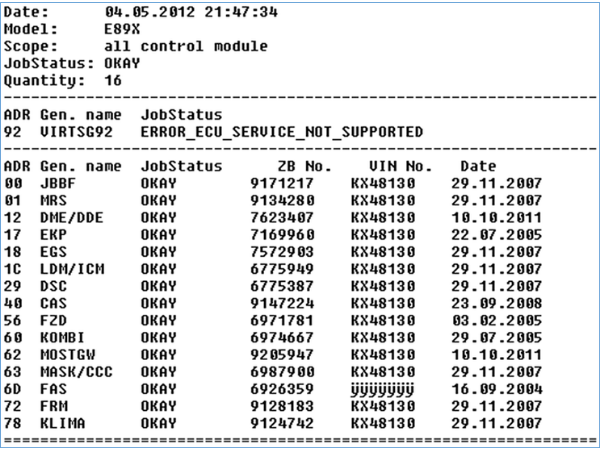
The ZB number of each module can be found easily through INPA software. Below is the method.
1. Select INPA to select the model. (ex .: F4 E60, F8 E90)

2. Select Chassis → Functional Jobs.

3. Select the F3 User Information Field (UIF).

4. In the UIF contents, each module is visible and the middle ZB No. is displayed. It is a 7-digit number,
Flashing in Winkfp.
4.21.2017
How to Update and Flash BMW ECU via ICOM WinKFP
This is the user guide of how to update or flash a BMM ECU using WinKFP via a INPA K+DCAN cable ( some also called it ICOM cable).
First, the tools
If you want to update your car yourself in to easiest way possible…you’ll need:
– A powerful laptop
– Download and install ISTA-P
– Download and install ISTA-P
(standalone links available all over net; if you wanna use a tested version with safety, go to a online shop to buy it- http://www.obdii365.com/wholesale/v201703-bmw-icom-software.html it’s a good man of his word to trust in)
– A cable; that is an ICOM cable
– A cable; that is an ICOM cable
(If you want to update CAS then k+dcan cable is enough.)
– At least a 50a power supply, better 70a, to keep car at 13.8v while updating modules.
– Time. Depending on what modules you’ll have the update will take several hours.
– At least a 50a power supply, better 70a, to keep car at 13.8v while updating modules.
– Time. Depending on what modules you’ll have the update will take several hours.
Next, preparation for ECU update
You need to import all sp-daten files to WINKFP. Files preparation is the important thing first.
Then you need to have extra power supply connected to your battery.
After this you are ready to flash your ECU. CAS should be updated without key in slot (ignition off).
If you didn’t do it before you should be really careful, it’s easy to brick module.
After this you are ready to flash your ECU. CAS should be updated without key in slot (ignition off).
If you didn’t do it before you should be really careful, it’s easy to brick module.
Finally, update ECU with WinKFP
- configure

- start

- options

- ecu selection

- enter vin

- programming

- confirm update

Winkfp update a bmw ecu successfully!
Alternatively, go to dealer, whinge about a problem and suggest a software update…
Alternatively, go to dealer, whinge about a problem and suggest a software update…
Or the hard way. As above, but use winkfp with a download set of daten files (google for links). Use comfort mode in winkfp to update modules then code to default after with ncs expert…
11.23.2016
How to use BMW Coding Tool WinKFP software
This WinKFP job was after FRM3 repair/reflash by Xprog like in our FRM3 repair post!
After FRM3 was repaired, then need to flash the correct software in FRM3 module.
The flash can be done with WinKFP, and in 2 ways.
Comfort mode and develop mode!
The develop flash mode you need when the FRM3 module repair dump not exacly belongs to car, and because safety reasons winkfp not leaves to update! In that case You need to use winkfp develop mode, which allows to be flashed any kind of software in any module!
The flash can be done with WinKFP, and in 2 ways.
Comfort mode and develop mode!
The develop flash mode you need when the FRM3 module repair dump not exacly belongs to car, and because safety reasons winkfp not leaves to update! In that case You need to use winkfp develop mode, which allows to be flashed any kind of software in any module!
First of all need to update winkfp spdaten.


Then click done
 Now you can start programming!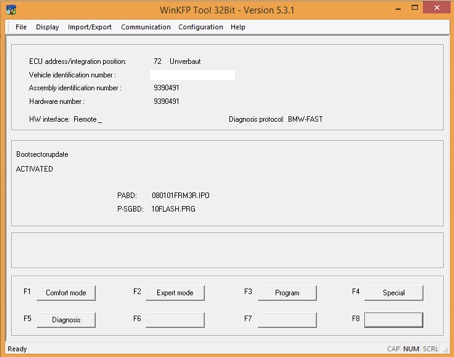

If you getting error , to can`t update because software incompatibility, then need to do by Develop/Expert mode!
In that case note down the details like in pic 4.
Ecu address, Identification number,PABD,P-SGBD.
Ecu address, Identification number,PABD,P-SGBD.
Now You need to copy the data file from spdaten (exx/data/module name/coresponding data file) to winkfp develop folder (c://ec-apps/nfs/data/develop)
click on expert mode and choose manually all data what u noted down,and the coresponding zb number also!
Now You can start to flash with expert mode!

BMW Coding Tool Winkfp also have more functions like diagnostic , check aif and so on!
If you like to change vin number in any unit, the winkfp is the easiest way!
If you like to change vin number in any unit, the winkfp is the easiest way!
After finished the flashing, need to recode with ncs expert!
How to code with ncs-expert coming soon on next blog post.....
Subscribe to:
Posts (Atom)