Due to popular demand we are proud to introduce availability of the new Rheingold BMW Icom diagnostic software suite, consisting of BMW Ista/D (Diagnostic) and BMW Ista/P (Program and Coding) this is the very latest BMW diagnostic software platform, which replaces the original BMW DIS, BMW SSS V32 and BMW TIS software platform on BMW vehicles manufactured after 2009, including the new ‘F’ series BMW’s and with the addition of BMW Motorcycles, it is also fully reverse compatible with older ‘E’ series models.
ISTA/P and ISTA / D will work on all BMW Vehicles, manufactured between 1996 and 2016, and is required on ALL newer vehicles manufactured after March 2009 (which was when the original BMW DIS software platform was retired).
ISTA/D – Read and clear fault memory, wiring diagrams, repair instructions, technical documents, activations, live data, etc
ISTA/P – Program and encode, update vehicle software, retrofits/conversions (i.e trailer hitch, satellite radio, etc)
BMW Ista /D and Ista /P will also work with BMW Motorcycles and BMW Mini vehicles, and gives the same level of access to your vehicles’ control modules as a genuine BMW dealer would have, including Diagnostics, Programming and individual personalisation of the various comfort features and options.
All emulators and security dongles are supplied, and the Interface Cables are included in the package purchase.
The software has multiple language options, including English, German, French, Spanish, Italian, Swedish etc. No need to add language packs or translations.
The software is supplied on a USB 3.0 stick complete with full, easy to follow instructions and will work on most modern, dual core or I-core laptops.
To run this software, you will need to make sure that you use a modern laptop using a dual core or I-core processor with plenty of available memory (4gb minimum), Rheingold will work with both 32 bit and 64-bit versions of Windows XP, Windows Vista, Windows 7, Windows 8 and Windows 10
BMW RHEINGOLD ISTA D & ISTA P DIAGNOSTIC PACKAGE
CLICK HERE TO BUY THE LATEST RHEINGOLD BMW ISTA D / BMW ISTA P SOFTWARE PACKAGE

BMW ICOM A, ICOM A2, ICOM Next, ISTA-D, ISTA-P, E-sys, INPA, Ediabas etc BMW diagnostic and programming software technical support.

4.19.2018
BMW F-series Coding with CGDI Prog BMW
CGDI Prog BMW MSV80 is not only able to program BMW key for CAS1-CAS4+/fem/bdc system and read ISN, but also do F-series coding.
CGDI BMW F-series coding guide:
Select BMW F series coding

Read ECU info
This feature requires network connection.

Select control module

Backup coding

Confirm backup coding data

CGDI BMW backup coding success

Select Coding

Coding success

Related post:
http://blog.obdii365.com/2018/04/19/cgdi-prog-bmw-key-programmer-f-series-coding-manual/
4.13.2018
NcsExpert changes/codes VIN after FRM2 update
Purpose: write/code VIN after FRM2 update
Car: 330d 2006
Tool: BMW ICOM emulator
Software: NCS expert, Tool32, WinKFP
Tutorial: Upgraded to FRM2 – how do i code it?
The basic steps are:
1. Install FRM2
2. Change FRM2 VIN to yours. Flash FRM2 with WinKFP comfort mode with your VIN. Or use Tool32 to change VIN as above.
2.5. Verify VIN change with Tool32.
3. Copy CAS VO (FA) to FRM with NCSexpert.
4. Change date with NCSexpert.
5. Code to default with NCSexpert.
2. Change FRM2 VIN to yours. Flash FRM2 with WinKFP comfort mode with your VIN. Or use Tool32 to change VIN as above.
2.5. Verify VIN change with Tool32.
3. Copy CAS VO (FA) to FRM with NCSexpert.
4. Change date with NCSexpert.
5. Code to default with NCSexpert.
Exact instructions for each step are discussed and available in the following parts.
It’s very simple.
1. Open Tool32
2. Plug in cable
3. Press F3 and choose the FRM87.prg or whatever FRM you have (see from INPA uif)
4.Select job c_fg_schrieben
5. Enter your FULL VIN (including checksum) into arguments field
6. Execute job
2. Plug in cable
3. Press F3 and choose the FRM87.prg or whatever FRM you have (see from INPA uif)
4.Select job c_fg_schrieben
5. Enter your FULL VIN (including checksum) into arguments field
6. Execute job
You can check the VIN using job ‘c_fg_lesen’
Once done use NCS EXPERT to copy your CAS FA string to FRM / change date then code to default with expertmode.
Btw, when you enter your VIN you must use FULL VIN. Which is VIN number with a checksum at the end. You can see you full VIN in NCS expert when you do any coding.
Note: Step 2 means you won’t need to use Tool32 at WinKFP can set VIN also…
The basic steps:
1) Remove FRM, install FRM2.
2) Use WinKFP to program the module, make sure to enter your VIN-number before programming.
3) Switch to NCS-EXPERT. Get your Vehicle Order from the CAS module (as we are unsure of what the FRM2 module contains.
4) Write the Vehicle Order to module “FRM” using job “FA_WRITE”
5) Go back to the main menu (or restart ncs-expert) and get the vehicle order from the “NFRM” module. Make sure NFRM returns YOUR VIN and YOUR VO. We want the VIN (FG) and VO (FA) to be the same in both CAS and NFRM.
6) You now need to do the trick described by 4711 a couple of posts back, i.e. change the production date in the VO to at least #0307. If you don’t do this, ncs-expert will not list NFRM (=FRM2) in the “Process ECU”-list and you won’t be able to code it. Change the VO using the “Enter FA” option – remove your production date and enter #0307 (meaning march 2007).
7) Now click “Process ECU” and select “NFRM”
1) Remove FRM, install FRM2.
2) Use WinKFP to program the module, make sure to enter your VIN-number before programming.
3) Switch to NCS-EXPERT. Get your Vehicle Order from the CAS module (as we are unsure of what the FRM2 module contains.
4) Write the Vehicle Order to module “FRM” using job “FA_WRITE”
5) Go back to the main menu (or restart ncs-expert) and get the vehicle order from the “NFRM” module. Make sure NFRM returns YOUR VIN and YOUR VO. We want the VIN (FG) and VO (FA) to be the same in both CAS and NFRM.
6) You now need to do the trick described by 4711 a couple of posts back, i.e. change the production date in the VO to at least #0307. If you don’t do this, ncs-expert will not list NFRM (=FRM2) in the “Process ECU”-list and you won’t be able to code it. Change the VO using the “Enter FA” option – remove your production date and enter #0307 (meaning march 2007).
7) Now click “Process ECU” and select “NFRM”
Then just code to default with expert mode.
Reference: Youtube video – E90 VIN change with NCS Expert
4.12.2018
How to solve BMW ISTA+ 4.10 Error “Programming is not possible”
Here lists possible solutions from users to help those with error “Programming is not possible” when using BMW ISTA+.
Error message: I get message after reading all ECU’s
“Programming is not possible”
If I click this message away I can just continue.
“Programming is not possible”
If I click this message away I can just continue.
I have: bin, binx64, host, hostx64
But which files/maps must be located in map PSdZ?
But which files/maps must be located in map PSdZ?
Solution 1:
Try it with the BLP data so the folder “data” under C / Rheingold / PSdZ / data ..
Of course, in the Reg also specify that the data is available but still as you have made everything on “false” ..
Of course, in the Reg also specify that the data is available but still as you have made everything on “false” ..
you unpack the BLP under C / Rheingold / PSdZ / and you get the folder “data” ..
So C / Rheingold / PSdZ / data ..
So C / Rheingold / PSdZ / data ..
Reg:
“Product Version” = “4.10.30.15635”
“Main Product Version” = “4.10”
“Data version” = “10/04/31”
“DataVersion_en-GB” “04/10/31”
“Logistic Base Version” “10/04/30”
“SWIData” = “04/10/30”
“Main Product Version” = “4.10”
“Data version” = “10/04/31”
“DataVersion_en-GB” “04/10/31”
“Logistic Base Version” “10/04/30”
“SWIData” = “04/10/30”
“BMW.Rheingold.Programming.ExpertMode” “True”
“BMW.Rheingold.Programming.Enabled” = “True”
“BMW.Rheingold.Programming.PsdzDataPath” = “.. \\ .. \\ .. \\ \\ PSdZ data_swi”
“BMW.Rheingold.Programming.Enabled” = “True”
“BMW.Rheingold.Programming.PsdzDataPath” = “.. \\ .. \\ .. \\ \\ PSdZ data_swi”
If it doesn’t work, try the following solution. It works for someone in earlier version.
Solution 2:
In earlier versions this worked:
“BMW.Rheingold.Programming.ExpertMode”=”False”
“BMW.Rheingold.Programming.Enabled”=”False”
“BMW.Rheingold.Programming.PsdzDataPath”=”..\\..\\PSdZ\\data”
“BMW.Rheingold.Programming.ExpertMode”=”False”
“BMW.Rheingold.Programming.Enabled”=”False”
“BMW.Rheingold.Programming.PsdzDataPath”=”..\\..\\PSdZ\\data”
Have not tried on latest.
P.S. BLP must be installed normally into data folder. No need to create any empty folders.
Still had psdz path set to data_swi. You must adjust it to be data instead of data_swi when no sdp installed. Then it should not complain and work. BLP data MUST be installed in all cases.
Solution 3:
Create empty folders
С:\Rheingold\PSdZ\data
С:\Rheingold\PSdZ\data_swi
С:\Rheingold\PSdZ\data
С:\Rheingold\PSdZ\data_swi
Working registry
Windows Registry Editor Version 5.00
[HKEY_LOCAL_MACHINE\SOFTWARE\WOW6432Node\BMWGroup]
[HKEY_LOCAL_MACHINE\SOFTWARE\WOW6432Node\BMWGroup\ISPI]
[HKEY_LOCAL_MACHINE\SOFTWARE\WOW6432Node\BMWGroup\ISPI\ISTA]
“DataVersion”=”4.10.31”
“DataVersion_en-GB”=”4.10.31”
“ProductVersion”=”4.10.30.15635”
“MainProductVersion”=”4.10”
“InstallLocation”=”C:\\Rheingold”
“LogisticBaseVersion”=”4.10.30”
“SWIData”=”4.10.30”
“DataVersion”=”4.10.31”
“DataVersion_en-GB”=”4.10.31”
“ProductVersion”=”4.10.30.15635”
“MainProductVersion”=”4.10”
“InstallLocation”=”C:\\Rheingold”
“LogisticBaseVersion”=”4.10.30”
“SWIData”=”4.10.30”
[HKEY_LOCAL_MACHINE\SOFTWARE\WOW6432Node\BMWGroup\ISPI\Rheingold]
“BMW.Rheingold.Programming.Enabled”=”True”
“BMW.Rheingold.Programming.PsdzDataPath”=”..\\..\\..\\PSdZ\\data_swi”
“BMW.Rheingold.Programming.ExpertMode”=”True”
“BMW.Rheingold.Programming.Enabled”=”True”
“BMW.Rheingold.Programming.PsdzDataPath”=”..\\..\\..\\PSdZ\\data_swi”
“BMW.Rheingold.Programming.ExpertMode”=”True”
Rheingold location
Directory of c:\Rheingold\PSdZ
Directory of c:\Rheingold\PSdZ
06-Apr-18 22:13 <DIR> .
06-Apr-18 22:13 <DIR> ..
29-Mar-18 19:35 <DIR> bin
29-Mar-18 19:35 <DIR> binx64
06-Apr-18 22:13 <DIR> data
16-Mar-18 09:25 <DIR> data_swi
29-Mar-18 19:35 <DIR> host
29-Mar-18 19:35 <DIR> hostx64
06-Apr-18 22:13 <DIR> ..
29-Mar-18 19:35 <DIR> bin
29-Mar-18 19:35 <DIR> binx64
06-Apr-18 22:13 <DIR> data
16-Mar-18 09:25 <DIR> data_swi
29-Mar-18 19:35 <DIR> host
29-Mar-18 19:35 <DIR> hostx64
FULL SW
Directory of c:\Rheingold\PSdZ\data_swi
Directory of c:\Rheingold\PSdZ\data_swi
16-Mar-18 09:25 <DIR> .
16-Mar-18 09:25 <DIR> ..
16-Mar-18 09:52 <DIR> psdzdata
16-Mar-18 09:25 <DIR> ..
16-Mar-18 09:52 <DIR> psdzdata
Lite SW
Directory of c:\Rheingold\PSdZ\data
Directory of c:\Rheingold\PSdZ\data
06-Apr-18 22:13 <DIR> .
06-Apr-18 22:13 <DIR> ..
06-Apr-18 22:13 <DIR> psdzdata
06-Apr-18 22:13 <DIR> ..
06-Apr-18 22:13 <DIR> psdzdata
4.09.2018
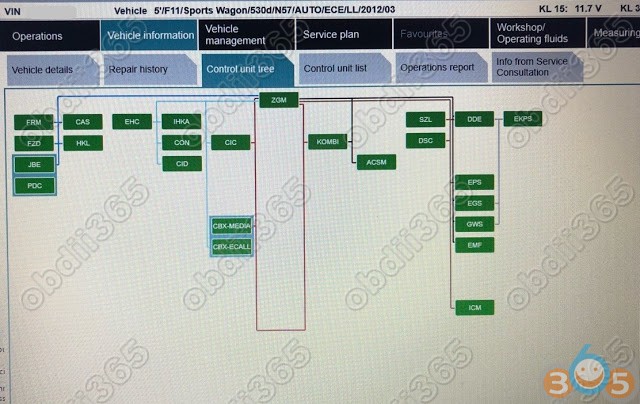
How to replace BMW F11 engine control unit?
Case
- replace the used engine module to F11 2012, because the original was totally dead after incorrect power connection during chip-tuning and remained forever in the parking lot. as a consequence of the lack of communication on the table with the processor in the boot mode.
Tool:
BMW ICOM A2/ICOM Next emulator with ISTA-D ISTA-P programming software
How to:
1. Readout of the immo CAS4 data
2. After reading the data, it became clear that CAS4 EWS5 crypto.
3. Next decode CAS4 memory to obtain the synchronization code.
4. Entry of received synchronization code into the new-used DDE741 engine ecu.
5. Change of three VIN codes in the new-used engine control unit.
6. Zeroing the mileage in the new-used engine controller because the mileage in it was 116335km, and in the car 227140km.



Note: * The document was translated from Polish. You are at your risk.
- replace the used engine module to F11 2012, because the original was totally dead after incorrect power connection during chip-tuning and remained forever in the parking lot. as a consequence of the lack of communication on the table with the processor in the boot mode.
Tool:
BMW ICOM A2/ICOM Next emulator with ISTA-D ISTA-P programming software
How to:
1. Readout of the immo CAS4 data
2. After reading the data, it became clear that CAS4 EWS5 crypto.
3. Next decode CAS4 memory to obtain the synchronization code.
4. Entry of received synchronization code into the new-used DDE741 engine ecu.
5. Change of three VIN codes in the new-used engine control unit.
6. Zeroing the mileage in the new-used engine controller because the mileage in it was 116335km, and in the car 227140km.


3.30.2018
BMW Dr.GINI B021 Version Software Free Download
We have discussed Dr.GINI B020 version software in detail in previous post. Here you can download newer B021 version for free.
Note: B021 is not the latest version, latest B022 is not for free. Latest BMW ICOM HDD also comes with free Dr.GINI engineering software.
Introduction:
The friend who made this is called Dr.GINI.
The advantage of this program is that can be used on both E-series and F-series.
The friend who made this is called Dr.GINI.
The advantage of this program is that can be used on both E-series and F-series.
The friend is great,but sometimes this tool is likely to be paid.
Free download Dr.GINI-B021 coding software
https://mega.nz/#!Hp1mAaZS!EtNhwaSwVtpYHoSAVjNakuYjqPFU-zPrrzrDv_9DrmY
https://mega.nz/#!Hp1mAaZS!EtNhwaSwVtpYHoSAVjNakuYjqPFU-zPrrzrDv_9DrmY
File Including:

–AP132.DLL: Use if error occurs during installation
–ECU: Use in Expert menu
–EDIABAS: EDIABAS installation file
–INTERFACES: EDIABAS.INI file for each interface
–MAPS: Latest lookup.xml file for map updates
–setup Dr.GINI EN Basic.exe: B021 installation file based on B020
–ECU: Use in Expert menu
–EDIABAS: EDIABAS installation file
–INTERFACES: EDIABAS.INI file for each interface
–MAPS: Latest lookup.xml file for map updates
–setup Dr.GINI EN Basic.exe: B021 installation file based on B020
The difference between B020 and B021 is…
-Convenient to use ICOM in Interface
-Convenient to use ICOM in Interface

-Units menu to complement and add FSC, instrument panel, FRM functions

-Map update FSC code extraction

-Instrument cluster

Now let’s look at the Dr.Gini main features (use older version as example):
Delete Fault Code
Deleting fault code of module is very fast and quick
In the functional window, click 1.Identification 2.Read Errors at the bottom
Delete Fault Code
Deleting fault code of module is very fast and quick
In the functional window, click 1.Identification 2.Read Errors at the bottom

Module in error is shown in red, click “Clear Errors” in the bottom right corner.

A list of error deleted. The time required is within a few seconds…
You don’t have to turn Rheignold to try to delete the fault code.
You don’t have to turn Rheignold to try to delete the fault code.

Gauge and actuators


VO: Shows the vehicle order of the vehicle. It also shows the i-level of the vehicle
on the right side.
on the right side.

Map update FSC code generation.
Generate fsc code to update CIC/NBT Map.

In Expert Mode, also VIN change, module reset

It seems that a small program is integrated with a clear function.
See also:
Dr.gini B020 BMW Manual: Download, Install, How to use
http://blog.obdii365.com/2018/03/30/free-download-bmw-dr-gini-b021-coding-software/
3.05.2018
BMW ICOM Next WLAN Setup Manual
Look here: How to setup WiFi for BMW ICOM Next A+B+C
You need: good router working for your Icom Next interface
Steps:
Step 1: Router Wireless Connection Setup
Step 2: ICOM Next WLAN Configuration
Step 1: Router Wireless Connection Setup
WIFI name(SSID): ISAP
WIFI encryption: WPA-PSK/WPA2-PSK
WIFI password: BmwAp24h


Step 2: ICOM Next WLAN Configuration
Run ITool Radar and read ICOM Next device info (IP address)

Open IE browser and input the ICOM configuration address (IP address http//***.***.***.***:58000 differs, according to the data read in fact)
Here: http://169.254.33.45:58000/


Disconnect network connection and the Next restarts
BMW Icom Next will connect to WIFI automatically
If we use software and USB-WIFI, the configuration info should be:
Mode: 802.11n,2.4GHz
SSID: ISAP
Security Type: WPA2 Personal
Pre‐shared Key: BmwAp24h

BMW Icom Next WLAN configuration success!
Subscribe to:
Posts (Atom)