Showing posts with label ncs expert. Show all posts

11.02.2021

Retrofit BMW M3 Instrument Cluster with R270 Ncs Expert

This is a DIY guide that explains how one can retrofit another instrument cluster into their car. In this case, I was upgrading to an M3 cluster in my 128i, but all coding processes apply to retrofitting other 1'er clusters (135i cluster in a 128i, for example).

Important Notes:

I am using Windows 10 Home 64-bit on a Lenovo Legion gaming laptop. Nothing specialized here, computer-wise. A laptop is preferable since you'll need to do some in-car coding.

The donor instrument cluster MUST have fewer miles than your car in order to use this process.

I bought a cluster from a manual M3, and installed it into a manual 128i. Please do not ask how to install in an automatic, because, I have no idea. I'd assume the process is much the same (it's probably exactly the same, since NCS Expert really does all the footwork for you).

All software below is what I used, and had success with. It's reasonable to assume that it'll work for you, too. If it doesn't, google is a wonderful tool that fixes issues for lots of people (myself included).

You should have a basic understanding of NCS Expert and how it works.

Materials for Coding the New-to-You Cluster:
-R270+ Programmer (like this one)
-SOIC8 Testing Clip (like this one)
-Used Instrument Cluster (This process requires that it has less miles than your car; easy for me, with 196k miles when shopping for M3 parts)
-T10 Torx screwdriver (only necessary for M3 clusters)
-Install R270 Programmer Software (this download is clean, I wouldn't recommend using the disc included with the programmer, RUN SETUP.EXE to install)
-Install HxD hex editor (here)
-Mike's Easy BMW Tools (this is what works for me)
-K-DCAN Cable (this one works for me)

Preparing for Coding:

Make sure all the necessary software has been installed, and that the programs launch correctly. Test the BMW tools by launching INPA and verifying that it's connected.

You'll first need to open-up your new instrument cluster. On the M3 clusters, there are four silver T10 screws on the back that you'll need to loosen before attempting to hulk the thing apart. After those screws are out, work your way around the cluster, popping each of the 6 retainers (2 top, 2 bottom, 1 each side) and slowly pull the two halves apart.

Now, you need to pop the gauge needles off. For this, I recommend cutting out a four-inch square piece of paper, and then cutting a ~2mm-wide slot, about 2 inches long, starting mid-way on one of the sides and going to the center of the square of paper. Now, fit this square of paper underneath the needles, and above the gauge dial. The slot is supposed to let you slide the piece of paper underneath both needles (speedo and fuel, or tach and oil temp) and around their pins so that it protects the dial (they scratch easily). To pop the needles off, I recommend a very thin fork that'll fit around the pins. Just work it under the needles, and gently pry upwards. Shoot for the most vertical motion possible, with as little twisting as possible. If you snap the pins that hold the needles, you pretty much have to scrap that cluster. In a pinch, a thin, flat-blade screwdriver works just fine. Set the needles aside in a safe place after you're done playing with them (we all do it).

This is a tricky one to explain, but here it goes: You now need to flip the cluster over to the black plastic side. You will see a rectangular 18-pin connector (it's the only connector, but I'm trying to be detailed). You need to push downwards on that connector (towards the bottom of the cluster assembly) push it out so that the white plastic part pops out a little, then press the opposite direction on the side that didn't pop out, and kinda wiggle the thing apart. The end result will be a large piece of black plastic, and then the white plastic part with the now exposed backside of the circuit board.

Now, separate the white plastic from the circuitry by releasing four little clips (2 on top, 2 on bottom). For 1-series clusters, you will need to also detach the ribbon cable attached to the LCD panel. Simply disconnect it from the long white connector at the bottom of the circuit board. Now, you can clearly see the brains that make your instrument cluster tick, there's far more going on than you'd think, a far cry from old cars (which makes our jobs super easy).

You are now ready to do the first part of coding.

Clearing Old VIN from EEPROM:

Pull out your R270+ and your SOIC8 test clip. Find your EEPROM. It is an 8-pin chip (four on a side). On the M3 cluster, it is just above the left corner of the LCD display (as shown in the huge picture below). The clip I used (link above), has a pink wire denoting Pin 8. If you look at the text on the EEPROM, correct side up, Pin 8 is on the bottom left of the chip.
Ensure everything is plugged-in and connected. Launch the R270 programmer application, select which chip it is (printed on EEPROM). All three clusters I've seen had 080D0WQ chips, but verify yours because they can be different. Hit "Read" ignore the obnoxious beeps from the programmer box, and save the .BIN file to your desktop (you can save it anywhere, really). Now, close the R270 program, and open HxD. Open the .BIN file. Scroll down to the -2E0 line, and highlight all data in that line, and replace it with FF's. Line -2E0 should read "FF FF FF FF FF FF FF FF FF FF FF FF FF FF FF FF" when done (you could copy that and paste it into HxD, too). Save the .BIN file, close HxD, and open the R270 app again. Load the .BIN file, then verify the selected chip, and hit write. This process will take about a minute, and there will be lots of beeping.
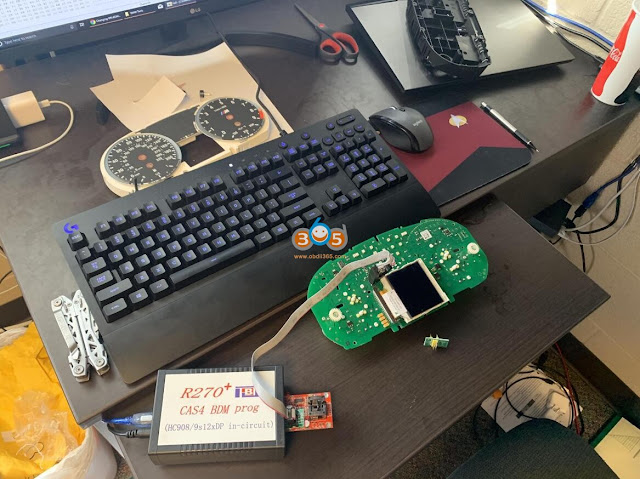
Retrofit BMW M3 Instrument Cluster with R270  1
The programmer comes with just the red board. The clip comes with two adapters, I used the black one with the keyed connector for the clip itself and simply inserted it into the pin holes next to the ZIF socket. (Pic attached)
Retrofit BMW M3 Instrument Cluster with R270  2

Retrofit BMW M3 Instrument Cluster with R270 3
Once finished, you are done with this part of the install. Disconnect the programmer, and, minus the needles and front cover (part with clear plastic), reassemble the cluster. You should ONLY have the back black plastic part, circuit board, and white plastic part put together.

Coding Cluster to Car with NCS Expert:

After you're done being extremely happy that you did a computer thing, go out to your car with your half-cluster and your needles.

I would disconnect the negative battery lead for this part.

Remove your original cluster, there are two torx (T15??) screws at the top of the hood. Remove those, then use a thin flat-blade screwdriver to push the top of the cluster downwards, then pull the cluster out. Undo the connector on the back (there's a latch mechanism, so be aware of that).

Now, connect your new-to-you cluster, and THEN reconnect the battery, if you disconnected it.

Open your computer, turn the ignition on (door closed, engine not running, climate control unit should turn on). Connect your K-DCAN cable and verify communication with INPA. Open NCS Expert, load "Default profile" (Mike's Tools). Hit "VIN/ZCS/FA" then hit "ZCS/FZ f. ECU" and select "E89" for chassis, then "CAS" for module. Give it a second to fill VIN and VO fields. Hit "Back" then hit "Process ECU" select "KOMBI" and hit ok. "Change job" to "SG_CODIEREN" and the "execute job." It will take a couple seconds and there will be beeping and weird noises. Once done, your new cluster is coded to your car's VIN, and will not show any errors for things your car doesn't have.

5.21.2020

BMW E85 Z4 SBSR Airbag Module Coding Guide

I've finally got a used airbag ECU for my 2003 Z4 3.0 and after fitting it the airbag light is still on. A pal used a obd2 scanner to read the fault code and the "Safety and Gateway module" shows the error "93AB Incorrect chassis number. He can clear the fault but it immediately returns.

Is there anyone anywhere near Peterborough that has the necessary equipment to code my VIN number onto the new module please?


Step by Step to edit VIN, Flash, Code to Default, Clear Errors and Start System Time of the Airbag Gateway Module. 

Hopefully it will be useful to someone else if they find themselves in the same position.


INPA: UIF (User Information Field) Report
1-Open INPA>select your car model (E60)>Functional Jobs>F3 UIF
-This is the first change. The E85 profile says "Quasi Functional" and doesn't have the F3 UIF choice on my version, so I did an Information report instead (F2)

2-You'll see a list of all control units with their ZUSB number and VIN
-This is the BMW part number that comes up for the module you are sorting out in the information report. I couldn't see the VIN anywhere on this report so I just wrote it down from the windscreen. 

3-Print to PDF the report.
4-Identify the ZUSB numbers without your VIN and copy from the PDF and close INPA
- I didn't do these steps, I just copied down the part number of the modules I needed (in my case "Airbag ECU or Safety Info Module" and "Satellite B Pillar Left").

WinKFP: Edit VIN and Flash Module
5-Open WinKFP (Load SPDaten files google it)
6-Select comfort mode
7-Then click find ZUSB
8-Paste the number you copied
9-this will go straight to the right ZUSB
-In my case this only worked for one of the two modules. The other one had a ZUSB/part number older than the daten files I was using, so was not recognised when I typed it in. There is another way to do this next bit if you find the same thing (see alternative below). If this step does work correctly, note down the ECU Family the module is in (from the left column), you will need it to start the system time later on.

10-Then enter your full VIN and then click on done
11-Double check that the module your going to flash it's safe to flash with your cable and the battery needs to be connect to another power source
12-Click on update ZUSB (this will flash the module with SPDaten files and re-write the VIN)

Alternative:
A1. You need to find the ECU family that your module is in. For me the main airbag ECU was in SIM85 and the pillar module was in SBL264. To double check this, look for your *.his files on the PC (mine were in C:\EC-APPS\NFS\DATA). They are all named with the ECU family (SIM85.his for example), so if you open these up with notepad and search through you will see all the historic ZUSB/part numbers for that module. When you find the one with your module part number in you will have the ECU family name you are looking for.
A2. Open WinFKP
A3. Select Comfort mode
A4. Select Update ZUSB
A5. Select the correct family for your module
A6. Enter your full VIN and then click done
A7. Double check that the module your going to flash it's safe to flash with your cable and the battery needs to be connect to another power source
A8. Click on Prog. ZB-Update
A9. This will then show you the update that is about to be programmed onto the module, click ok to start programming. This took a few minutes per module in my case, so make sure your car battery and laptop aren't going to run out of juice halfway through. I hooked the car up to a charger just in case.


NCS Expert: Code to Default 
-If you're interested in what you are doing here then I found a really useful introductory guide. It was good to understand a little bit of what I was actually doing, although you don't need it to complete the next steps: https://www.bimmerforums.com/forum/show ... NCS-Expert

13- Open NCExpert
14-Load profile -> Expertmode (I used Expertenmodus (Werkseinstellung), as Expertmode wouldn't load on my version as it was too old) -> F1 -> F3 -> choose E60 (E85) from the list -> choose any module you want from this list -> now click F6 Back -> select F4 Process ECU -> choose Module -> now click ReadECU -> close the notepad window that showed up after the module was read (On mine it came up with another window with three text boxes in, I just closed this).
15-Press F5 for basic functions -> Select "coapiReadSgGetFswPsw" and click Ok -> Select F2 "job" select SG_CODIEREN and press ok -> Press F3 Execute job and wait for the buttons to become active, when active it's all done.

INPA: Identification Report and Clear Errors
16-Open INPA>select your car model (E60)>Functional Jobs>Identification
17-Print the report to PDF.
18-Look in the SGBD column the module you replace
19-Clear (EM, IM and HM) Errors and Close INPA
- I couldn't see the SGBD column on the E85 information report. i just noted it down from earlier when using WinKFP. 

Ediabas Tool32: Start System Time
20-Start Tool32
21-Select File->Load SGBD, Group file
22-Browse to the EDIABAS\ECU folder, and search for the file name based on the listed SGBD column. Can be more than 1 file.
-I actually couldn't find an exact match for the satellite pillar that had come up in WinKFP, but I chose SBSL85 and it seemed to work. The main ECU was SIM85 again so this was more obvious.

23-In the Left of the window select systemzeit_lesen (write) 
24-In the middle of the window Argument (value of) type 1 in the dropdown menu
25-double click systemzeit_lesen and done.
26-double click systemzeit_starten. (no arguments)

I had to go back into INPA and clear the errors on the safety modules again to finish everything off. 

I unplugged the cables, switched the car on properly, and celebrated loudly when the airbag light went off. I also breathed a big sigh of relief as I had approached this with some trepidation to start with, but in the end it wasn't too hard with all the information that others have kindly made available already.

3.30.2020

How to do BMW E90 new FRM coding with Ncs Expert?

I have an BMW 2007 E90 335i.
I'm going to swap my frm1 module with an frm2 module from 2008 so I can have the warm welcome halos light up when I unlock the car.


I finally got it in and working!
The angel eyes now turn on when I unlock the door, but I remember the angel eyes slowly turning on when I tested it on the donor car.
On my car they just abruptly turn on.
Once your new frm module is in.
From the Ncs Expert MAIN MENU(once you open the app and connect to the car)

Click vehicle
Click vehicle order
Click CAS
Click Edit
Click date
Change date to March 2007
Click Actions
Click save
A window pops up, “choose location”
Click both FRM and CAS.(it will change the date on both CAS and frm and copy your VO from CAS to FRM.

Once that’s done, your FRM should show the same VO as your CAS. If not, close the app and try again.


Default coding the FRM.
Main menu again:

Click safety
Click FRM(footwell module)
Click coding
Click default code
A window promoting you to make a back up will pop up, click confirm.
Click Car access system(CAS)
It will say “copying VO” then “coding”
It should say coding successful once it’s done.

Verify your new FRM has your vin written on it by clicking FUNCTIONS and then read vin(still in the frm menu).

If your vin is read, you’re done.
If Your FRM shows XXXXXXX as vin, relaunch the app and read the vin again. If it still says XXXXXXX as vin, default code the frm again.
Really easy, should only take a few minutes.

http://www.obdii365.com/wholesale/bmw-inpa-k-can-with-ft232rq-chip.html

1.12.2020

How to Reset BMW ELV when battery registration failure?

Problem: 
 it's already happened to one of you that you can't register the new battery with ista? and the steering lock light in yellow lights up, it's impossible to reset the elv.

Solution:
E Model you can use NCS (you find Battery Capacity in cas) ELV you can use tool 32 (please open cas.prg)

If you only changed battery with the new one with the same capacity, then do this:
*Tool32: 
SGBD: (Choose DME or DDE) “Steuren_batterietausch_registri Start job once
If you changed the capacity or type: *Change E-word in VO of the car by NCSEXPERT, write FA and code CAS
Alternatively use esys for F serie and code CAS/FEM
Then try to reset ELV counter and CAS in ISTA or Tool32 . 

12.01.2019

BMW Carly vs. Rheingold (INPA, NCS, ISTA-D/-P)

This is for those are researching what he should buy for his BMW.
The option is narrowed on BMW ICOM cable + Rheingold and Carly Pro for BMW + Carly gen2 adapter.

Carly can run diagnostics and code.
It can be installed only on tablets and phones. For what it does wireless connection is sufficient.
carly-bmw

Inpa from BMW standard tools can only run diagnostics.
It can’t code functions. I personally prefer ista-d.
inpa-software
Ncsexpert from BMW standard tools can only code functions.
It can’t run diagnostics. With Ncs dummy companion is very easy tool and error proof.
ncs-expert
Ista-d aka rheingold can only run diagnostics and is full repair manual for all bmw group vehicles.
It requires connection only for diagnostics. You can look up the manual without connecting to the car.
ista-d-bmw

Ista-p is THE programming tool.
It requires icom connection to run properly. Also requires battery maintainer. It can render the car inoperable if things with power go wrong. Never tried it personally.
ista-p-bmw

Summary:

For a code reader, it really depends on the what your looking for.

Carly is a great tool for diagnostics and coding.
Some of the cons of Carly are: takes a while to complete diagnostics on car, at least on the android system I use. Carly cannot do extensive coding, for instance it cannot code out tpms, edc, adaptive headlights etc.

If you want an extensive coding program and diagnostics tool get NCS Expert and Inpa. You can find the software free online.

5.22.2019

How to disable BMW seat-belt butler with NCS Dummy?

Question:

Does anyone know how to disable that stupid arm using an NCS Dummy? 2007 335i.


Solution:

Find your frm version through ncs expert, open ncs dummy and find the translations.

Look for gurtbringer. There is one parameter for each side. It's just aktiv/nicht aktiv.
disable-sear-belt-bulter-ncs-dummy

Result:
Thanks that worked!

5.21.2019

How to Disable BMW TPMS and Activate FTM with NCS Expert

I just went through a bunch of online documentation and did not get a clear answer for my car. 2008 328xi e90. Here's the instructions below to helpfully help anyone who is trying to kill tpms and enable FTM. I modified existing bits of information I found on the web and pasted it below so i do not take credit for any of this.

** Disconnect RDC Module above battery in trunk behind insolation **
1) NCS EXPERT, FILE, PROFILE, EXPERTMODE
2) F1 (vIN, ZCF/FA)
3) F3 (ZCS/FA F. ECU)
4) SELECT CHASSIS
5) CAS, (VIN SHOULD POPULATE), OK
6) F2, ENTER FA
7) SELECT CHASSIS, AGAIN
8) CLICK ON $2VB, HIT DELETE KEY ON KEYBOARD AND PRESS OK
9) F6, BACK
10) F4, PROCESS ECU
11) SELECT CAS, AGAIN
12) F2, CHANGE JOB, SELECT FA_WRITE
13) F3, EXECUTE JOB
14) F1, SG/SGEN, SELECT NFRM
15) F3, EXECUTE JOB

For e90 328xi 2008 i had to recode VO’s for NFRM and CAS

**TO WRITE TO ANOTHER MODULE,
-F1 (SG/SGEN), THEN F3, EXECUTE JOB.
_________________________________________
RECODE/RESET affected modules to enable FTM

1) For my car i had to reset BDSC, CAPPL (PRE LCI NAV CCC) AND KOMBI. Yours may include DSC/CIC (LCI NAV)

Module Reset Instructions
1 - Launch ncs expert and load the expert profile
2 - Press F1, then F3, choose your car chassis from the list and press ok. Next Press F6 to go back
3 - Press F4 and choose ecu/module you want to reset and press ok
4 - Press F2 and choose SG_CODIEREN and press ok
5 - Press F3 to execute job

2) USING EXPERTMODEN, CHANGE RDC_ALIVE TO NICHT_ATKIV IN KOMBI

12.10.2018

How to use BMW Coding Tool 2.50 to update SP-DATEN Files

The BMW Coding Tool 2.50 allows you to update your SP-DATEN (Data files) automatically instead of manually installing the files by copy and pasting files. It will automatically update the files that require replacing and skip the files that you don’t need!

Related Products:

The BMW Coding Tool is installed when you install your BMW Tools Package. You can find the shortcut on the desktop.
Software Included in BMW Tools Package:
  • INPA 5.06 (Script files in English)
  • EDIABAS 7.3.0
  • NCS Expert 4.0.1 (Menus and Buttons in English)
  • NCS Dummy 0.6.04
  • Tool32 4.03
  • WinKFP 5.3.1
  • BMW Coding Tool v2.5.0 (alternative to NCS Dummy or  for updating DATEN files)
  • Integrated SP-DATEN v53.3 (light version, all you need for coding and diagnostics)
Required Hardware: K + D-CAN “INPA” OBD2 Interface Cable with FTDI FT232RL or FT232RQ Chip
(click to enlarge images)
update-SP-DATEN-Files-1
1. We need to set our default folders for NCSExpert, WinKFP, and EDIABAS. See the screenshots.
Set Default NCS Expert folder
Set Default Ediabas folder
Set defualt WinKFP -NFS folder
Shw default folders
Set custom picture
Reset windows size Sort list items
Show NCS Coding only
update-SP-DATEN-Files-2

update-SP-DATEN-Files-3

update-SP-DATEN-Files-4

update-SP-DATEN-Files-5

update-SP-DATEN-Files-6
2. Once all the folders are set we can now proceed to updating our SPDatens. Doing this by selecting the “Select SP-source” button and then select the folder with the new SPDaten. I always like to start with the earliest model which is E36.
Path should look something like mine in the screenshot.
update-SP-DATEN-Files-7
3. Now that we have set our SPDaten path we can now select the “Update SP-daten” button.
update-SP-DATEN-Files-8
Only all NEWER files will be copied from:
…\SP-DATEN-Exx\ECU –> …\EDIABAS\ECU
…\SP-DATEN-Exx\SGDAT –> …\EC-APPS\NFS\SGDAT
…\SP-DATEN-Exx\SGDAT –> …\NCSEXPER\SGDAT
…\SP-DATEN-Exx\DATEN –> …\NCSEXPER\DATEN\Exx
also update of files in …\NCSEXPER\DATEN
You will notice the files that have been replaced will display update –> **.** and the ones that did not require updating will displayremain –> **.**
In my case as displayed in the image below all will show remain because I have already updated them.
update-SP-DATEN-Files-9
4. Now repeat the same steps for WinKFP…
Select the “Update WinKFP” button and all folders will be copied and replaced from:
…\SP-DATEN-Exx\DATA –> …\EC-APPS\NFS\DATA
also update of SGIDC.AS2 in …\EC-APPS\NFS\DATA\GDATEN to adjust the “long lines”
backup’s of all folders are saved as …\name_date_time
update-SP-DATEN-Files-10
5. Once completed, repeat the same steps for all base models so from E36 to E89. Congratulations you now have successfully updated your NCSExpert and WinKFP with your latest SP-DATEN files.

9.08.2018

INPA reprograms a new battery to BMW 328i: Done!

Tutorial + FAQs: BMW 328i new battery reprogramming/coding

Reason why you need “code” for a new battery:The answer to this varies. You may not have to! That is, so long as you replace your old battery with an exact replacement. However, if you switch from a wet-cell type battery to an AGM type battery, or vice versa, you must code for the change.
AGM and wet-cell batteries require a different rate of charge output from the alternator. Moving between these two types without coding can lead to over-charging or under-charging.
Also, batteries have a discharge rating called amp hours (ah). You must specify to the DME what the “ah” rating of your battery is so the car can run the proper charging algorithm.

Car: BMW 328i the year 2008
Software: INPA and Ediabas

How to reprogram a new battery with INPA software:
1: select BODY from the left hand pop-up menu
2: select POWER MODULE in the right hand list
3: select ACTIVATE from the next menu
4: Select ACTIVATE2 from the next menu
5: Then select F7 – Register battery replacement. Almost instantly you get the message: “Register battery replacement Activated properly.

THIS IS ONLY FOR REGISTERING AN OEM BATTERY FROM BMW! Alternate replacements will need additional coding to match voltage etc differences


Battery capacity / type in the FA change with NCS expert

FA read -> prepared following the new battery parameters in the FA change (eg,-A100,-B090 ..) -> FA in CAS and LM (depending on BJ o.FRM) Review – encode> Vehicles


FAQs for more details: 

1) Can I update the VO to CAS and FRM in expert mode? if not, what profile would I need?
only expertmode
2) Can I SG_Codieren to CAS in expert mode as well? Or would I need a profile with Manipulation enabled?
expertmode + sg_codieren = ecu to deflaut settings(factory)
3) When registering the battery in tool32… Do I use the MSD80.prg file for a 2008 328i?
yes but to be sure check what .prg use inpa to connect to your engine

  • Would NCS Expert be needed or just INPA alone?
Try with INPA

5) So will both NCS Expert and BST 2.12 run on win7 64 bit?
BST 212 will work on 64bit OS.

6) Any leads on where to find updated Datens or INPA?Here’s 2013 sp daten 2.51.2 full package for all cars (torrent download). Torrent files are split by chassis number so you can choose to download part or all of the archives: http://www13.zippyshare.com/v/94958605/file.html

7) If I only need e90 support, I can just use INPA and EDIBAS that comes with the above posted BST 2.12 ??? If that’s it, then I can go ahead and install this puppy… SP daten files are for Winkfp and NCS expert for programming and coding only.

Note: SP Daten E89 = E81,E82,E84,E87,E88,E90,E91,E92,E93.  Inpa is used for basic diagnosis and some adjustments, no coding. Mainly works on cars 2008 and below. Limited use on newer cars. You should install the package that comes with your cable as it’ll contain most of the ipo files needed to communicate with your car. But I recommend you install the new 2018 Rheingold software instead for diagnosis as it’ll do everything inpa does and a lot more. It’s easier to use and works on all cars and can be used with the K+DCAN USB cable or the blue GT1/DIS USB cable (note: the blue usb cable works on cars < 2007 only). You’ll find the Rheingold download and instructions on this blog http://blog.obdii365.com .

Related post:

5.24.2018

BMW E90 New Battery Coding & Register FAQ and Guide

Check information below to read if you’d like to know why coding/register BMW ss important and how you can get it done yourself!

Credit to bNks334 from bmw e90post forum. You are at your risk. 

Q: I have an older E90, does this apply to me?
A: This guide only applies to vehicles equipped with IBS (intelligent battery sensor). Registration and coding will not be successful on older vehicles that are equipped with basic power management systems.

Q: I replaced my battery and it works just fine, why all the fuss?
A: Disregarding the need to register and code for a new battery may result in improper charging. Over time, improper charging may have detrimental effects on the lifespan of your cars battery and the operation of the vehicles electronics.

Q: Why do I need to register a new battery?
A: The short answer is that BMW designed the charging system with an algorithm that varies the rate of charge by the age and type of the battery installed. Registering a new battery resets the algorithm back to optimal charging voltage for the specified battery.

Q: Why do I need to "code" for a new battery?
A: The answer to this varies. You may not have to! That is, so long as you replace your old battery with an exact replacement. However, if you switch from a wet-cell type battery to an AGM type battery, or vice versa, you must code for the change.

AGM and wet-cell batteries require a different rate of charge output from the alternator. Moving between these two types without coding can lead to over-charging or under-charging.
Also, batteries have a discharge rating called amp hours (ah). You must specify to the DME what the “ah” rating of your battery is so the car can run the proper charging algorithm.

Q: I bought a lightweight battery, but the “ah” rating for my new battery is less than the lowest setting available in the CAS/NFRM module. Is this ok?
A: While not ideal, you can certainly use your new battery. Code your car for the setting that best matches your new battery. Most important is ensuring you’ve changed the settings from wet-cell to AGM type, if necessary. Consequently, you may negatively impact the life expectancy of the new battery by coding say an 80ah AGM charging map when your lightweight battery has a discharge capacity of only 18ah…

Personally, I am running a Deka/East Penn Sports Power ETX-30L Battery ($103.99). I used XS Power 586 Tall Brass Post Adaptors (M6 Thread). The Deka ETX-30L is rated 400CCA @ 28.6Ah(20HR) and is a 21lb AGM type battery. EDIT: I now run a PC925. Both these batteries crank the car strong, but I would not recommend ever using anything weaker!

My 2011 E82 did not have a charging map listed in the CAS module for anything less than 80ah AGM. Therefore, this is what I chose when I coded my car (initially). There are people that have reported seeing options in the CAS module for as low as 40ah AGM. I believe updating to a newer CAS ZB software may provide more options. Or, maybe the additional options are only available in the CAS module for higher end models like 335is E92’s? I can only speculate as to why some people have more settings available than others.

I ended up using Carly to code my battery again. Even though the lowest setting I found in the CAS module was 80ah AGM, Carly provided a 36ah AGM option. After using Carly to code my new battery, INPA does indeed confirm (see appendix D) the charging system is using a 36ah AGM charging map, or at least INPA recognizes that’s what Carly set it to


Q: What cable do I need to connect to use BMWtools on my laptop/device?
A: I use a generic OBDII to USB (K+DCAN) cable I got off amazon, and it works fine:
http://www.obdii365.com/wholesale/bmw-inpa-k-can-with-ft232rq-chip.html

Q: Can I use Bluetooth?
A: I bought a generic ELM327 OBDII to Bluetooth adapter for use with apps like Carly, Torque, Trackaddict, and Harry’s lap time to name a few, and it works fine:
http://www.obdii365.com/wholesale/elm327-bluetooth-software-obd2-eobd-can-bus-scanner-tool.html

Q: I installed a battery with exact replacement specs (e.g. 80ah wet cell with 80ah wet cell). How can I register my new battery?
A: There are several methods that can be used to register a new battery. See options 1, 2, and 3 below:

Q:
 I installed a battery of a different type and/or capacity (e.g. 80ah wet-cell with a 90ah wet-cell, or, 90ah wet-cell with a 40ah AGM). How can I code for the changes I made to the battery?
A: There are several methods that can be used to code for battery changes. See options 1, 2, 4, and 5, below:

Option 1:

Overview:

Carly is an Android/iOS app that can be used to painlessly register and code a new battery. Just purchase the app, and the in-app purchase for the battery module, and it walks you through the process.

Steps:
1) Download the Carly app on your device ($44.99 + $9.99 for battery module):
2) Verify your OBDII to USB cable is working properly or that your OBDII to Bluetooth adapter is properly paired to your device and communicating with Carly.
3) Purchase the in-app battery module. From here, Carly walks you through the steps of both registering the battery and coding for any changes. It’s that simple.

Option 2:

Overview
:
Use Rheingold (ISTA-D) to REGISTER and/or CODE a new battery. The virtual machine, mentioned above, comes pre-loaded with this dealer level software. An ICOM emulator is all setup for you to use this program with the aforementioned K+DCAN cable.
  • Rheingold is an amazing tool. It will automatically diagnose issues with your vehicle and provide a corrective action plan to fix them. It will even tell you the steps you need to take to re-program things with a separate program called ISTA-P.

Steps:

1) Turn ignition to the “on” position. INPA can be used to verify the car is communicating properly. INPA shows when the ignition is in the on/off position.
2) Load Rheingold
3) Click the “Identification” tab
4) Click “Read out” tab and then “start” in the bottom right (takes a long time to gather cars info)
5) Once vehicle info has loaded (verify your vin is accurately displaying) click the “Vehicle management” tab
6) Navigate to: Service function>body>voltage supply>battery>register and then click “start search”
7) Select result “ABL register battery replacement ”
8) Rheingold then walks you through your options! You can simply register a new like-for-like battery, or you can change the battery capacity. Rheingold will prompt you to perform coding using ISTA-P!

Option 3:

Overview:

Use Ediabas Toolset32, a software packaged with the BMWtools suite, to REGISTER a new battery

Steps:
1) Run Tool32.exe
2) Navigate: File>Load SGB>C:/EDIABAS/ECU/[choose the appropriate .prg file for your DME – see appendix A]
3) Look up steuern_batterietausch_registri (near bottom of job list)
4) Go to Jobs menu
5) Select Run Job (German: Job Einmal Ausfuhren [run job once])
6) Verify operation reports “Okay”

Option 4:

Overview:

This method is a bit incomplete in regard to coding. It uses NCSexpert to edit the settings in the CAS and NFRM modules. Essentially, you are manually changing the settings in the CAS/NFRM module to reflect the new battery.

*****While this method seems like a straightforward way to code for battery changes, it fails to address the issue of vehicle order (VO). This could have implications for future coding and ZB updates. See option 5.

*****After completing this coding, you must still perform "Option 3" to register the new battery using Tool32. Or, you can use ISTA-D to do the registering, but then you might as well also use ISTA to do the programming at that point...

Steps:

1) Load NCSExper.exe
2) Select a profile that has manipulation enabled: File>load profile> “CNCcoding”
3) Select: F1>F3>select your chassis>select “CAS”
4) Press F6 for back
5) Press F4 to select a specific module “Process ecu” then you get a list of all modules available for your car
6) Select “CAS” then select “READ ECU” this is going to read all the values from the specific module and create an FSW_PSW.TRC file with the values
8) Leave NCSExper.exe open and navigate to the “work” folder ([X]:\NCSEXPER_64\WORK)

The FSW_PSW.TRC file we generated when we “read” the CAS module is where we are going to change the battery settings. After making our changes, we will then change the file extension to the file type NCS uses to write to the selected module (.MAN).

At this point, you can also use a program called NCSDummy to make things easier. You can use NCSDummy to import the .TRC file. NCSDummy will provide translations and descriptions for all the settings in the CAS module. I will not cover the details on how to use NCSDummy, it is very easy if you search. The following steps continue with how you can just simply edit the .TRC file in notepad to achieve our goal of coding a new battery:

9) Open the generated FSW_PSW.TRC file with notepad
10) Select: File>save as>FSW_PSW.MAN (be sure to select “save as type” to all files so that it will accept the “.MAN” extension. If you fail to do so it will just save it as a text file .TXT)
11) Search for the option “KLASSE_BATTERIE” and change the value from its current setting to a setting that most closely matches the rating of your new battery (e.g. “90ah” to “70ah” or if using an AGM battery “70ah_agm”) (see Appendix E)
12) Select: File >Save
13) Back to NCS now hit F5 for basic functions
14) Select “coapiReadSgGetFswPsw” and then “ok.” You are basically telling NCS to read all the values from your .MAN file. You will see a screen… just press ok. Then press ok again.

Ok now take a look where it says “JOBNAME = CODIERDATEN_LESEN” We need to change that to a coding function because we want to write the changes to the module, not READ as we did earlier.

15) Select F2 “job”
16) Select SG_CODIEREN and press ok 
17) Then press F3 to execute the job. After a pause you will see the “coding ended” message!

I am not sure if these steps are 100% what you’ll see. It’s been a while since I coded my battery, but I’ll update the steps as needed.

Instead of clicking "Process ECU", you can click "Process car" (F3), and then "Code Car" (F1). This will code every module in the car (might take longer like 5minutes) for the changes you made in the .MAN folder for the CAS module we read. There are changes that may need to be made in NFRM that this will take care of.

The battery rating should now be updated in the system. You can verify the coding was successful by performing the steps outlined in Appendix D.

Option 5:

Overview:

This is the proper method to manually code for changes to the battery. Your vehicle order (VO) stores all the information regarding the various hardware your car came with from the factory. For example, if your car came with a wet-cell 70ah battery, your VO will read out with attribute -B070 (see Appendix B). Now, lets say you used option 4, above, to manually change the CAS module to reflect a new 70ah AGM battery. Your VO will still reflect the old battery of –B070. You want your VO to be updated to read -A070 (see Appendix B).!

If you go to the dealer, their software (Rheingold/ISTA-D and ISTA-P) will read your VO and recommend diagnostic/programming changes as if you still have that old battery installed. Basically, their software would overwrite the changes you made in option 4 and set all the coding back to the settings that reflect the old battery!

This is also how people lose their DEALER flashed PPK tune. The dealer fails to perform the proper programming portion of the PPK flash and the VO is never updated to reflect the PPK tune is installed on the vehicle. Return visits to the dealer then results in the dealers software to recommends DME updates that overwrite the PPK dme software! If you properly update the VO then only software, and settings, that matches your cars hardware will be recommended!

Steps: 
Changing VO
1. Open NCSEXPER.exe
2. Select: File > Load profile > Select a profile that has manipulation enabled (“CNCoding”) > Click OK
3. Press F1 (VIN/ZCS/FA)
4. Press F3 (CS/FA f. EC) > Select E89 (chassis family for E9x and E8x vehicles) > Click OK > Select CAS > Click OK
5. Press F6 (Back)
6. Press F1 (VIN/ZCS/FA)
7. Press F2 (Enter FA) > Select E89 > Click OK
8. A window labeled “Enter VIN” appears with your vehicles VIN number filled in > Click OK
9. A window labeled Enter FA appears > scroll to find VO for old battery (-B090) > highlight –B090 and press delete on keyboard
10. Enter –A080 (see Appendix B) in the “Attribute” box > Click Add > Click OK
11. Press F6 (Back)
12. Press F4 (Process ECU) > Select CAS > Click OK
13. Press F2 (Change Job) > Select FA Write > Click OK
14. Press F3 (Execute Job)
15. Verify that the write is complete “Job Ended”
16. Press F1 (Change ECU) > Select FRM/NFRM > Click OK
17. Verify lines: get coded, FRM, JOBNAME = FA_Write
18. Press F3 (Execute Job)
19. Verify that the write is complete “Job Ended”
20. Press F6 (Back) > Exit NCSEXPERT

The CAS and NFRM/FRM modules will now always default back to the new attributes you assigned to the VO!

It is important to now use NCSExpert to code the car to the new VO settings. If you properly changed the VO, NCSExpert will automatically write the battery capacity and type settings to the various modules. This is what we did manually in option #4!

1. Open NCSEXPERT
2. File > Load profile > Select a profile that has manipulation enabled (“CNCoding”) > Click OK
3. Press F1 (VIN/ZCS/FA)
4. Press F3 (CS/FA f. EC) > Select E89 > Click OK > Select CAS > Click OK
5. Press F6 (Back)
6. Press F3 (Process Car)
7. Press F1 (Code Car)

Appendix A:

MSV70,MSV 70.0 for N52 (NG6),
MSV80,MSV 80.0 for N52KP (NG6),
MSD80,MSD 80.0 for N43 N53 & N54 with EWS4/CAS,
Mevd172KW, Mevd 172 for N55 (Older N55’s up to late 2011 production)
Mevd176k, Mevd 176k for N55 (late 2011 production date or newer)
MSS60,MSS60 for S65 (M3),

Appendix B:

"B" represents wet-cell, while "A" represents AGM in the VO.
E B046 BATT_46AH //46 Ah-Batterie
E B055 BATT_55AH //55 Ah-Batterie
E B070 BATT_70AH //70 Ah-Batterie
E B080 BATT_80AH //80 Ah-Batterie
E B090 BATT_90AH //90 Ah-Batterie
E A070 BATT_AGM_70AH //70 Ah-AGM Batterie
E A080 BATT_AGM_80AH //80 Ah-AGM Batterie
E A090 BATT_AGM_90AH //90 Ah-AGM Batterie

Appendix C:

  • ISTA/D (aka Rheingold) is the current dealership diagnostic software for all Exx and Fxx cars.
    • ISTA/D is the replacement for older dealership "DIS" diagnostic software.
  • ISTA/P is the current dealership programming software for all Exx and Fxx cars.
    • ISTA/P is the replacement for the older dealership programming software “SSS.”
  • ISTA/P & ISTA/D are designed to be used with an ICOM Interface, and with full ICOM-A-B-C, you can connect to older cars. The ICOM "C" Connection is for the older BMW ADS 20-pin round "Pacman" connector in the Engine Bay. You can find versions of ISTA/D with an ICOM Emulator built-in that allows you to use it with an ENET Interface for Fxx cars and a DCAN Interface for Exx cars.
  • INPA (interpreter for test procedures) is an older factory floor diagnostic software, designed to run test procedures. While INPA can be set to an English User Interface, most of the Test Procedures (scripts), which can be difficult to find, are in German.
  • WinKFP is for flashing/reprogramming modules
  • NCSexpert is for coding, it can be used to set up options and enable things
  • Tool32 is like a DOS cmd box for the modules, it's text based and can it's able to ask the ECUs various questions and show the answers (like status, programming data etc)

Appendix D:

Verify changes:

To see the current rate your battery is charging at, open the INPA program>> E90>>ENGINE>>MSD80>> Status(F5)>>PM-IBS>>PM FIELD 2 . Under the PM Field option look at the ah reading registered, to see what it's set at to charge your battery at present. If it's incorrect, you need to re-try the options outlined above. Once you have done this, re-register your battery using the Tool32 program. Then go back into INPA and check the PM Field 2 again to see if the new ah reading has been registered.

Appendix E:

KLASSE_BATTERIE BATTERY TYPE
wert_00 value 00
80ah 80 ampere-hours
90ah 90 ampere-hours
110ah 110 ampere-hours
70ah 70 ampere-hours
55ah 55 ampere-hours
46ah 46 ampere-hours
70ah_agm 70 ampere-hours (agm)
90ah_agm 90 ampere-hours (agm)
60ah_agm 60 ampere-hours (agm)
80ah_agm 80 ampere-hours (agm)