I just went through a bunch of online documentation and did not get a clear answer for my car. 2008 328xi e90. Here's the instructions below to helpfully help anyone who is trying to kill tpms and enable FTM. I modified existing bits of information I found on the web and pasted it below so i do not take credit for any of this.
** Disconnect RDC Module above battery in trunk behind insolation **
1) NCS EXPERT, FILE, PROFILE, EXPERTMODE
2) F1 (vIN, ZCF/FA)
3) F3 (ZCS/FA F. ECU)
4) SELECT CHASSIS
5) CAS, (VIN SHOULD POPULATE), OK
6) F2, ENTER FA
7) SELECT CHASSIS, AGAIN
8) CLICK ON $2VB, HIT DELETE KEY ON KEYBOARD AND PRESS OK
9) F6, BACK
10) F4, PROCESS ECU
11) SELECT CAS, AGAIN
12) F2, CHANGE JOB, SELECT FA_WRITE
13) F3, EXECUTE JOB
14) F1, SG/SGEN, SELECT NFRM
15) F3, EXECUTE JOB
For e90 328xi 2008 i had to recode VO’s for NFRM and CAS
**TO WRITE TO ANOTHER MODULE,
-F1 (SG/SGEN), THEN F3, EXECUTE JOB.
_________________________________________
RECODE/RESET affected modules to enable FTM
1) For my car i had to reset BDSC, CAPPL (PRE LCI NAV CCC) AND KOMBI. Yours may include DSC/CIC (LCI NAV)
Module Reset Instructions
1 - Launch ncs expert and load the expert profile
2 - Press F1, then F3, choose your car chassis from the list and press ok. Next Press F6 to go back
3 - Press F4 and choose ecu/module you want to reset and press ok
4 - Press F2 and choose SG_CODIEREN and press ok
5 - Press F3 to execute job
2) USING EXPERTMODEN, CHANGE RDC_ALIVE TO NICHT_ATKIV IN KOMBI

BMW ICOM A, ICOM A2, ICOM Next, ISTA-D, ISTA-P, E-sys, INPA, Ediabas etc BMW diagnostic and programming software technical support.

5.16.2019
Release Notes of BMW ISTA-D 4.17.1x ISTA-P 3.66
Here are the release notes of latest version BMW ISTA-D diagnostic and ISTA-P programming software (till May 2019).
Version:
ISTA/D 4.17.1x
ISTA Service Data 4.17.11
ISTA/P 3.66.1
ISTA Service Data 4.17.11
ISTA/P 3.66.1
General notes:
With the launch of ISTA 4, the functionality for programming has been integrated in ISTA.
The following series can be dealt with using ISTA/P:
The following series can be dealt with using ISTA/P:
- E Series
The following series can be dealt with using ISTA 4:
- F, G and I Series
These Release Notes contain information for both programming systems.
The Release Notes list all known faults and faults that are currently still unresolved, with possible
workarounds which are important for the Retailer Organisation. Please contact Technical Support if
additional faults occur on the vehicle. In particular in the following cases:
workarounds which are important for the Retailer Organisation. Please contact Technical Support if
additional faults occur on the vehicle. In particular in the following cases:
- vehicle-related programming faults / encoding faults and activation faults
- functional faults on the vehicle
With ISTA 4, it is now also possible to send feedback relating to programming directly to BMW AG. Selecting
the “Feedback” symbol (envelope symbol) displays the feedback screen with input boxes
the “Feedback” symbol (envelope symbol) displays the feedback screen with input boxes
ISTA -D 4.17.13 ISTA-P 3.66 software optional:
Software List:
- ISTA-D 4.17.13
- SDP database 4.17.11
- VIN 2019/04/14
- ISTA-P 3.66.1.002, with Engineer Programming,supports the programming of BMW motorcycles and electric vehicles can program F/G/I/K chassis for car (through the ICOM, not other cable )
- ETK 2019.04
- KSD 2019.04
- INPA 5.00
- winkfp 5.2.3
- NCS 3.5.1
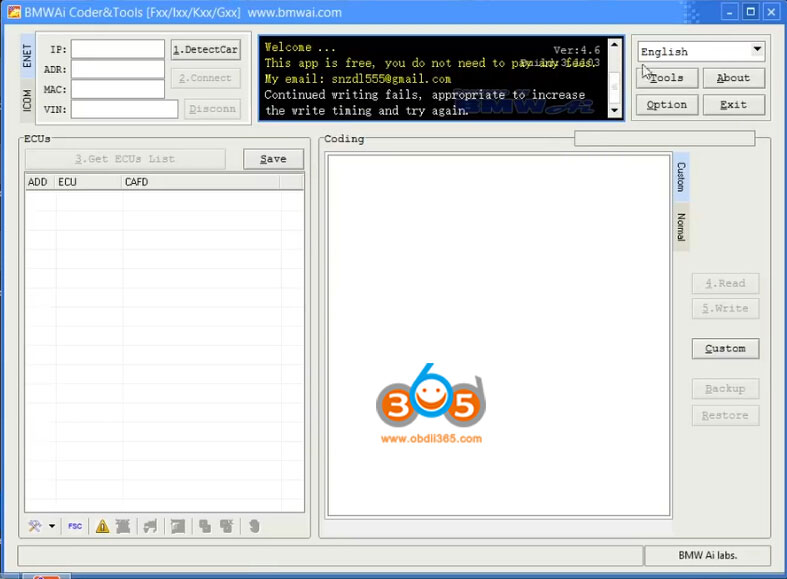
- BMWAi 4.6
- E-SYS 3.27.1 and 3.30, Psdzdata V66.1
- DR.GINI B020
- FSC Navigation Code Generator
- DIS Software for Old cars, DISV57 and DISV44,diagnosis and programming for BMW virtual machines.


With newer and more software for BMW E, F, G series coding and programming.
Software List:
- Rheingold ISTA-D 4.17.13
- ISTA/P 66.0.200
- BMW PSdZData Tool
- BMW coding tool
- E-sys 3.31.0
- E-sys Launcher Pro V3.1.1.133
- NCD/CAFD Tool V0.5.2.203
- Freischalt Tool 02.02.00
- INPA 5.02 English
- WinKFP
- NCS Expert (English/German)
- Tool32
- BMWAiCoder
- FSTool2
- FscToXml
- F series CBS RESET
- NCS Dummy
- iToolRadar
- HU Tool v2.6.PRE
- CIC Special Service Utility v1.0.4352
- CIC Language Coding Utility Ver. 1.2.2
- Dr.Gini B021
- Perfekt Toolbox 0.1a
- HU-ServiceManager ver.0.2 beta
- ISN Ver (0.12.04.16)
- BMW CIC/NBT FSC Generator
- SW ID Reader (DE) v1.2.1
- BMW CIC/NBT/EVO Keygen v1.9
- Swt to FSC
- BMW Explorer 0.13.7.13 Explorer VMware Workstation
- EWS Editor V3.2.0
- IBAC Activation Codes Generator
- AVTOTOOLS DME/DDE Password Extractor
- CAS4 Mileage Tool r20140617
- CAS3+ Editor
- EWS Editor
- Siemens MS41 EWS delete
- DDE/DME SA-option Helper V1.1
- BMW Coding Database
- KSD2 12.05.2019
- ETK 3.1.90
- etc
Part of MOE BMW software display:




ISTA-P/ISTA-D Multi-language available in diagnosing, programming and TIS diagram circuit: , British English, German, Spanish, French, Italian, polish, Portuguese, Turkish, Czech, Swedish, Dutch, Indian, Greek, Russian, Simplified Chinese, Traditional Chinese, Japanese, Korean and Thai.
All ISTA-D HDD/SDD are compatible with BMW ICOM hardwares:
Computer requirements:
Dual-core processor, better above I3; over 4G of memory
It is recommended to use Lenovo ThinkPad: T61, T400, T410, T420, T430, X61, X200, X201, X220 X230 and other laptop with Intel chipset, such as I3 I5 / I7 series.
4.16.2019
Does BMW ICOM ISTA-P support Italian language?
As titled, does the BMW ICOM A2/ICOM NEXT ISTA-P support Italian or other language?
Both ISTA-D and ISTA-P support multi-language, including:
ISTA Multi-language available in diagnosing (ISTA-D), programming (ISTA-P) and TIS diagram circuit: British English, German, Spanish, French, Italian, polish, Portuguese, Turkish, Czech, Swedish, Dutch, Indian, Greek, Russian, Simplified Chinese, Traditional Chinese, Japanese, Korean and Thai.


Both ISTA-D and ISTA-P support multi-language, including:
ISTA Multi-language available in diagnosing (ISTA-D), programming (ISTA-P) and TIS diagram circuit: British English, German, Spanish, French, Italian, polish, Portuguese, Turkish, Czech, Swedish, Dutch, Indian, Greek, Russian, Simplified Chinese, Traditional Chinese, Japanese, Korean and Thai.

Run ISTA language pack on desktop and choose language you desired:
4.15.2019
BMW ICOM Next ISTA-P "enter activation key" Solution
Problem:
I have finally been able to get my bmw icom next to show up and communicate with a vehicle, however, when I go to use ista-p, there is a box that pops up stating enter activation key (free version). See attached photo. 
Obdii365.com solution:
Please copy and paste the ISTA-P activate key to corresponding area.
1.17.2019
V2018.12 BMW E/F scanner Software Free Download
The latest and most stable software version of BMW E/F Scanner goes to V2018.12. Here obdii365.com provides software download for free.
File including


Software version: BMW-Explorer V 18.12.03
Added new versions of SWFL for FEM/BDC and DME/DDE
Fixed programming FEM/BDC/EGS/DME/DDE
Fixed programming FEM/BDC/EGS/DME/DDE
Operating system: Windows 7 – Windows 10
Language: Russian /English
Function: Full version supports BMW Diagnosis + IMMO key programming + Mileage Correction + Coding
Full Version Feature:
1.Basic features module
3. E-series Coding module
3.E-series CAS1, CAS2, CAS3, CAS3+ mileage Reset
4.E-series keyprog module
5.FEM/BDC mileage module
6.F-series mileage correction module
7. FLASH calibration READ/WRITE calibrations for F and G series models
8. ISN reset for F-series HP8 gearbox
9. FEM/BDC keyprog module
10. ISN MSx8x (SIEMENS) for BMW
11. F-Coding module
12. Tricore module for BMW
13. CAS4 CAS4+ F-series keyprog module with F-ISN
3. E-series Coding module
3.E-series CAS1, CAS2, CAS3, CAS3+ mileage Reset
4.E-series keyprog module
5.FEM/BDC mileage module
6.F-series mileage correction module
7. FLASH calibration READ/WRITE calibrations for F and G series models
8. ISN reset for F-series HP8 gearbox
9. FEM/BDC keyprog module
10. ISN MSx8x (SIEMENS) for BMW
11. F-Coding module
12. Tricore module for BMW
13. CAS4 CAS4+ F-series keyprog module with F-ISN


How to install BMW E/F Scanner V2018.12 driver?
Select the computer, and then right-click, select Manger
Open Device Manager
Quickly we click two times on USB Serial Port

We choose the bookmark Driver and we press on Update Driver
Further we choose Browse my computer for driver software and we press the Browse button
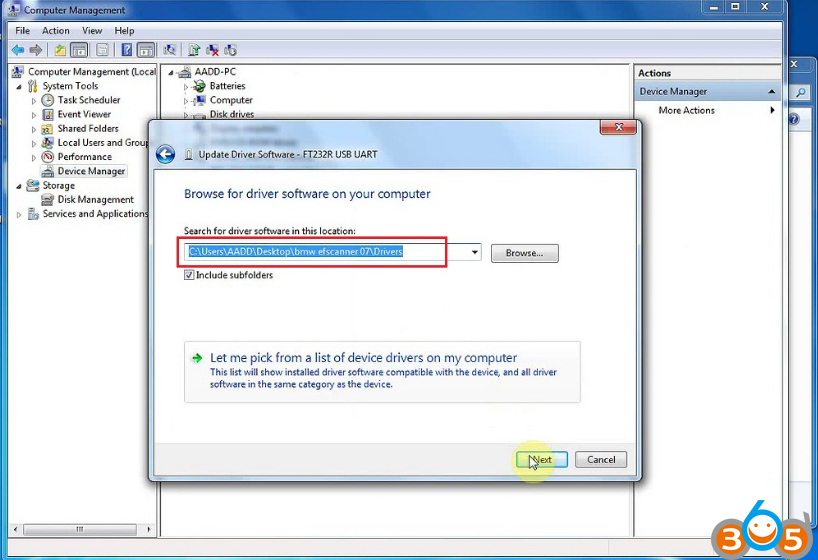
Further we Choose a directory where there are drivers for the adapter (by default C:\Program Files (x86)\BMW_Explorer\Drivers\FTD2XX)

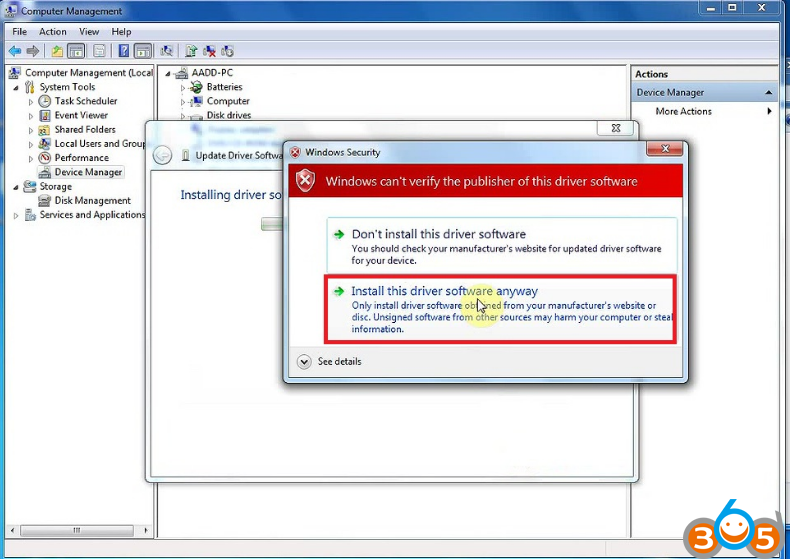
After the choice of drivers we press Next

We wait for the end of installation of the driver and we press Close

After successful installation we will see the Adapter (USB Serial Port COMXX) in Device Manager
Done.
How to DIY Update BMW F10 2019-1 Navigation
Here's the BMW F10 2019-1 Navigation Update DIY guide provided by a BMW F10 owner.
Just sharing for education purpose. Credit to SWFLf10. You are at your risk.
Software: BMW ENET cable & E-sys coding software for F-series
Just sharing for education purpose. Credit to SWFLf10. You are at your risk.
Software: BMW ENET cable & E-sys coding software for F-series
I'm sure you can find where to download all the software needed and how to install it properly on your PC.
Operating system: Windows 10 running in BootCamp on a MacBook Air.
The basics for install can be found in multiple places online and include the following:
1. Download latest map data for your specific nav unit (Mine is a Next NBT)
2. Extract files to a blank USB drive that is formatted as FAT32
3. Insert USB stick into car, and wait for prompt to update from USB
4. Enter FSC code
For those of you that don't know, the FSC code is specific to the map update and your cars VIN. This code can be bought online, or if you don't mind spending some extra time using Esys and some other software that can be found online, can be generated for free.
I used BMW Esys, BMW-FSC-NBT, and Base64 (Which came with my download of BMW-FSC-NBT). Here is my version of the steps necessary to create the first half of what you need using Esys:
1. Connect to car with Esys.
2. Click “FSC Extended” on left of Esys.
3. Enter “0x63” for the “Diagnostic Address”.
4. Click “Identify”.
5. Wait for “Base Variant” to display your cars' info.
6. Enter “0xDE” for “Application ID”.
7. Enter “0x1” for “Upgrade Index”.
8. Scroll down and select “StoreFSC”.
9. Select the “ >> ” button.
10. Click “Read”.
11. Click “Save” and save as last 7 digits of VIN.FSC
(example: XXXXXXX.FSC)
So that's the part that Esys takes care of. After this, I used a program called Base64, which came with the BMW-FSC-NBT software download I used in the next section. This step requires you to open a command prompt in Windows.
1. Make sure you have the BMW-FSC-NBT software installed and know the location.
2. Move the file you just saved with Esys to the "tools" folder inside the BMW-FSC-NBT software folder.
3. Open a command prompt Windows by typing "cmd" into the start menu on your computer. Now you need to navigate to the “tools” folder you just moved the FSC file to. You need to type "cd" then a space, then the location of the "tools" folder into the command prompt window.
(Example: "cd C:\Users\YourName\Applications\BMW-FSC-NBT\tools")
4. Now in the command prompt window, type in the following using YOUR FSC file name and last 7 digits of VIN (Replace the Xs with your VIN)
“Base64 XXXXXXX.FSC XXXXXXX_000DE001.FSC”
5. Run the BMW-FSC-NBT software by clicking it.
6. Select your newly made FSC file by clicking “Browse” and selecting the new file that you just created in the “tools” folder.
7. Select the correct map from the selection.
8. Click “Generate”. (This will generate your FSC code to enter into iDrive)
The issue I had here is that the map I was trying to update to (North America Next 2019-1) wasn't shown in the list! I had read that I needed to update my lookup.xml file to reflect this map, but didn't quite understand how to do so properly. These are the steps I used to update it to allow me to select it in the BMW-FSC-NBT software:
1. Navigate to the “tools” folder of the BMW-FSC-NBT software.
2. Right click, then select “edit” on the “index.xml” file.
3. Scroll down to the most recent map update for your application. (Mine was showing North America Next 2014-2 as the most recent)
4. Copy the lines from the most recent map update and paste below it.
5. Change “id” to match the map data file name.
6. Change the last two characters of “FscShort” to “FF”.
7. Change “name” to reflect the map data you are updating to.
8. Change “sop” to yesterdays' date.
EXAMPLE for North America Next 2019-1 (Changes I have made are in RED)
</SgbmId>
<SgbmId id="NAVD_000014B8_255_004_177" SWID_FscShort="00A800FF" name="Road Map NORTH AMERICA Next 2019-1" supplier="TAS" sop="11.01.2018" version="10_09" MapOrderNumberBMW="" MapOrderNumberMINI="" MapOrderNumberRR="" successorMapOrderNumberBMW="" successorMapOrderNumberMINI="" successorMapOrderNumberRR="">
<EcuVariant CompatibilityIdentifier="NBT-HB" Format="CIC" />
<SwUpdate SwUpdateEntry=""/>
</SgbmId>
Once I finally completed the changes, the list showed the "North America Next 2019-1" map. I selected it, then hit "Generate". This produced my FSC code needed to install the update! Finally!
I then plugged my USB drive with my map data on it into the car, selected "Update" in iDrive when prompted, and then entered this newly generated FSC code. It took about 15 minutes, then I had a message of success in iDrive!
Recap of the Steps:
VERY FIRST STEP:
Download and install BMW Esys and BMW-FSC-NBT and make sure you have Base64 within your BMW-FSC-NBT software folder.
Download Map and ready USB Drive:
1. Download latest Maps for your vehicle. Unzip and place on newly formatted FAT32 USB Drive.
Updating the lookup file (If your map isn't on the list in BMW-FSC-NBT):
1. Navigate to the “tools” folder of the BMW-FSC-NBT software
2. Right click, then select “edit” on the “index.xml” file
3. Scroll down to the most recent map update for your application
4. Copy the lines from the most recent map update and paste below
5. Change “id” to match the map data file name
6. Change the last two characters of “FscShort” to “FF”
7. Change “name” to reflect the map data you are updating to
8. Change “sop” to yesterday
EXAMPLE for North America Next 2019-1 (Changes in RED)
</SgbmId>
<SgbmId id="NAVD_000014B8_255_004_177" SWID_FscShort="00A800FF" name="Road Map NORTH AMERICA Next 2019-1" supplier="TAS" sop="11.01.2018" version="10_09" MapOrderNumberBMW="" MapOrderNumberMINI="" MapOrderNumberRR="" successorMapOrderNumberBMW="" successorMapOrderNumberMINI="" successorMapOrderNumberRR="">
<EcuVariant CompatibilityIdentifier="NBT-HB" Format="CIC" />
<SwUpdate SwUpdateEntry=""/>
</SgbmId>
Generating an FSC code:
1. Connect to car with E-sys
2. Click “FSC Extended” on left of Esys
3. Enter “0x63” for the “Diagnostic Address”
4. Click “Identify”
5. Wait for “Base Variant” to simply the cars’ info
6. Enter “0xDE” for “Application ID”
7. Enter “0x1” for “Upgrade Index”
8. Scroll down and select “StoreFSC”
9. Select the “ >> ” button
10. Click “Read”
11. Click “Save” and save as last 7 digits of VIN.FSC in the “tools” folder of the BMW-FSC-NBT software folder (example: XXXXXXX.FSC)
12. Open command prompt and navigate to the “tools” folder you just saved the FSC file in
(Example: "cd C:\Users\YourName\Applications\BMW-FSC-NBT\tools")
13. Type in the following using YOUR last 7 digits of VIN
“Base64 XXXXXXX.FSC XXXXXXX_000DE001.FSC”
14. Run the BMW-FSC-NBT software
15. Select your newly made FSC file by clicking “Browse” and selecting the new file in the “tools” folder
16. Select the map from the selection
17. Click “Generate” (This will generate your FSC code to enter into iDrive shortly)
18. Plug in the USB stick with the maps data into the car, wait for the update prompt, then select update
19. Enter the FSC code you generated when iDrive prompts you
Hope it helps.
Src: https://f10.5post.com/forums/showthread.php?t=1556104
Operating system: Windows 10 running in BootCamp on a MacBook Air.
The basics for install can be found in multiple places online and include the following:
1. Download latest map data for your specific nav unit (Mine is a Next NBT)
2. Extract files to a blank USB drive that is formatted as FAT32
3. Insert USB stick into car, and wait for prompt to update from USB
4. Enter FSC code
For those of you that don't know, the FSC code is specific to the map update and your cars VIN. This code can be bought online, or if you don't mind spending some extra time using Esys and some other software that can be found online, can be generated for free.
I used BMW Esys, BMW-FSC-NBT, and Base64 (Which came with my download of BMW-FSC-NBT). Here is my version of the steps necessary to create the first half of what you need using Esys:
1. Connect to car with Esys.
2. Click “FSC Extended” on left of Esys.
3. Enter “0x63” for the “Diagnostic Address”.
4. Click “Identify”.
5. Wait for “Base Variant” to display your cars' info.
6. Enter “0xDE” for “Application ID”.
7. Enter “0x1” for “Upgrade Index”.
8. Scroll down and select “StoreFSC”.
9. Select the “ >> ” button.
10. Click “Read”.
11. Click “Save” and save as last 7 digits of VIN.FSC
(example: XXXXXXX.FSC)
So that's the part that Esys takes care of. After this, I used a program called Base64, which came with the BMW-FSC-NBT software download I used in the next section. This step requires you to open a command prompt in Windows.
1. Make sure you have the BMW-FSC-NBT software installed and know the location.
2. Move the file you just saved with Esys to the "tools" folder inside the BMW-FSC-NBT software folder.
3. Open a command prompt Windows by typing "cmd" into the start menu on your computer. Now you need to navigate to the “tools” folder you just moved the FSC file to. You need to type "cd" then a space, then the location of the "tools" folder into the command prompt window.
(Example: "cd C:\Users\YourName\Applications\BMW-FSC-NBT\tools")
4. Now in the command prompt window, type in the following using YOUR FSC file name and last 7 digits of VIN (Replace the Xs with your VIN)
“Base64 XXXXXXX.FSC XXXXXXX_000DE001.FSC”
5. Run the BMW-FSC-NBT software by clicking it.
6. Select your newly made FSC file by clicking “Browse” and selecting the new file that you just created in the “tools” folder.
7. Select the correct map from the selection.
8. Click “Generate”. (This will generate your FSC code to enter into iDrive)
The issue I had here is that the map I was trying to update to (North America Next 2019-1) wasn't shown in the list! I had read that I needed to update my lookup.xml file to reflect this map, but didn't quite understand how to do so properly. These are the steps I used to update it to allow me to select it in the BMW-FSC-NBT software:
1. Navigate to the “tools” folder of the BMW-FSC-NBT software.
2. Right click, then select “edit” on the “index.xml” file.
3. Scroll down to the most recent map update for your application. (Mine was showing North America Next 2014-2 as the most recent)
4. Copy the lines from the most recent map update and paste below it.
5. Change “id” to match the map data file name.
6. Change the last two characters of “FscShort” to “FF”.
7. Change “name” to reflect the map data you are updating to.
8. Change “sop” to yesterdays' date.
EXAMPLE for North America Next 2019-1 (Changes I have made are in RED)
</SgbmId>
<SgbmId id="NAVD_000014B8_255_004_177" SWID_FscShort="00A800FF" name="Road Map NORTH AMERICA Next 2019-1" supplier="TAS" sop="11.01.2018" version="10_09" MapOrderNumberBMW="" MapOrderNumberMINI="" MapOrderNumberRR="" successorMapOrderNumberBMW="" successorMapOrderNumberMINI="" successorMapOrderNumberRR="">
<EcuVariant CompatibilityIdentifier="NBT-HB" Format="CIC" />
<SwUpdate SwUpdateEntry=""/>
</SgbmId>
Once I finally completed the changes, the list showed the "North America Next 2019-1" map. I selected it, then hit "Generate". This produced my FSC code needed to install the update! Finally!
I then plugged my USB drive with my map data on it into the car, selected "Update" in iDrive when prompted, and then entered this newly generated FSC code. It took about 15 minutes, then I had a message of success in iDrive!
Recap of the Steps:
VERY FIRST STEP:
Download and install BMW Esys and BMW-FSC-NBT and make sure you have Base64 within your BMW-FSC-NBT software folder.
Download Map and ready USB Drive:
1. Download latest Maps for your vehicle. Unzip and place on newly formatted FAT32 USB Drive.
Updating the lookup file (If your map isn't on the list in BMW-FSC-NBT):
1. Navigate to the “tools” folder of the BMW-FSC-NBT software
2. Right click, then select “edit” on the “index.xml” file
3. Scroll down to the most recent map update for your application
4. Copy the lines from the most recent map update and paste below
5. Change “id” to match the map data file name
6. Change the last two characters of “FscShort” to “FF”
7. Change “name” to reflect the map data you are updating to
8. Change “sop” to yesterday
EXAMPLE for North America Next 2019-1 (Changes in RED)
</SgbmId>
<SgbmId id="NAVD_000014B8_255_004_177" SWID_FscShort="00A800FF" name="Road Map NORTH AMERICA Next 2019-1" supplier="TAS" sop="11.01.2018" version="10_09" MapOrderNumberBMW="" MapOrderNumberMINI="" MapOrderNumberRR="" successorMapOrderNumberBMW="" successorMapOrderNumberMINI="" successorMapOrderNumberRR="">
<EcuVariant CompatibilityIdentifier="NBT-HB" Format="CIC" />
<SwUpdate SwUpdateEntry=""/>
</SgbmId>
Generating an FSC code:
1. Connect to car with E-sys
2. Click “FSC Extended” on left of Esys
3. Enter “0x63” for the “Diagnostic Address”
4. Click “Identify”
5. Wait for “Base Variant” to simply the cars’ info
6. Enter “0xDE” for “Application ID”
7. Enter “0x1” for “Upgrade Index”
8. Scroll down and select “StoreFSC”
9. Select the “ >> ” button
10. Click “Read”
11. Click “Save” and save as last 7 digits of VIN.FSC in the “tools” folder of the BMW-FSC-NBT software folder (example: XXXXXXX.FSC)
12. Open command prompt and navigate to the “tools” folder you just saved the FSC file in
(Example: "cd C:\Users\YourName\Applications\BMW-FSC-NBT\tools")
13. Type in the following using YOUR last 7 digits of VIN
“Base64 XXXXXXX.FSC XXXXXXX_000DE001.FSC”
14. Run the BMW-FSC-NBT software
15. Select your newly made FSC file by clicking “Browse” and selecting the new file in the “tools” folder
16. Select the map from the selection
17. Click “Generate” (This will generate your FSC code to enter into iDrive shortly)
18. Plug in the USB stick with the maps data into the car, wait for the update prompt, then select update
19. Enter the FSC code you generated when iDrive prompts you
Hope it helps.
Src: https://f10.5post.com/forums/showthread.php?t=1556104
1.15.2019
BMW E/F Scanner Program CAS3+ All Keys Lost
Here’s the guide to write keys in CAS3+ in case of loss all working keys using BMW E/F scanner and BMW Explorer software.

ALL keys lost programming procedure
Since ver. 15.02.15 of BMW Explorer user can choose between 3 variants to program ignition key. The lastest version of BMW E/F scanner goes to V2018.12.
(Click to enlarge all images)
1. Variant
NOTE: Please ensure that key slot is unblocked before to program the new key there.
If you have all keys lost, you must answer NO when BMW-Explorer ask if you have working key. BMW-Explorer will then extract crypto from DDE/DME and EGS GS19D (if available). Your PC must be connected to Internet to fulfill this procedure.
Also it will read ISN from the CAS module and automatically fill the CRYPTO fields in the working window of BMW Explorer.
If all the fields are match each other it means that crypto is correct and you can use any field. For example we can choose EGS crypto, then upload *.bek file, press write (red button) and just follow on-screen instructions. Then start a car.
If your car has DME/DDE with ews3 system and you are going to use EGS crypto, you must answer YES after BMW-Explorer asks you about “CFG”. Then simply wait the finish of the programming procedure. Don’t forget to make DME-CAS sync in DME menu (this step is not available for DME/CAS with ews4 )
In case if you see a different values in the DME crypto and EGS crypto fields, you can try to program the key using each field in turn.
After the key successfully programmed you must check a key status field
002B00- for pcf7936 chip
004B00- for smart key
005B00- for keyless-go key
Note: When you are using this way of key programming, make sure than DME/DDE-CAS-EGS belongs to the SAME car
NOTE: Please ensure that key slot is unblocked before to program the new key there.
If you have all keys lost, you must answer NO when BMW-Explorer ask if you have working key. BMW-Explorer will then extract crypto from DDE/DME and EGS GS19D (if available). Your PC must be connected to Internet to fulfill this procedure.
Also it will read ISN from the CAS module and automatically fill the CRYPTO fields in the working window of BMW Explorer.
If all the fields are match each other it means that crypto is correct and you can use any field. For example we can choose EGS crypto, then upload *.bek file, press write (red button) and just follow on-screen instructions. Then start a car.
If your car has DME/DDE with ews3 system and you are going to use EGS crypto, you must answer YES after BMW-Explorer asks you about “CFG”. Then simply wait the finish of the programming procedure. Don’t forget to make DME-CAS sync in DME menu (this step is not available for DME/CAS with ews4 )
In case if you see a different values in the DME crypto and EGS crypto fields, you can try to program the key using each field in turn.
After the key successfully programmed you must check a key status field
002B00- for pcf7936 chip
004B00- for smart key
005B00- for keyless-go key
Note: When you are using this way of key programming, make sure than DME/DDE-CAS-EGS belongs to the SAME car

2 Variant
Please ensure that key slot is unblocked before to program the new key there.
This variant is usable for a cars equipped with Bosch and Siemens DME/DDE with ews4 16 bytes long ISN code AND you have a possibility to read out ISN from DME/DDE.
BMW-Explorer can read ISN (SecretKey) from the following DME/DDE types-ME17N45 , MEV17_2 , MED17_2 , MV1722 , MVD1722 , MEV17N46 , MEVD176k , D7xN47xx , D7xN57xx , MSS60
If you got above listed DME/DDE, but BMW-Explorer was unable program key automatically, you must go to DME/DDE (Extra functions), read ISN manually and copy it. After that you must return to the CAS, select Key learning, answer NO when BMW-Explorer ask if you have working key, tick DME ISN box and Paste copied ISN into this field, then upload *.bek file, press write (red button) and just follow on-screen instructions. Then start a car.
After the key successfully programmed you must check a key status field
002B00- for pcf7936 chip
004B00- for smart key
005B00- for keyless-go key
Please ensure that key slot is unblocked before to program the new key there.
This variant is usable for a cars equipped with Bosch and Siemens DME/DDE with ews4 16 bytes long ISN code AND you have a possibility to read out ISN from DME/DDE.
BMW-Explorer can read ISN (SecretKey) from the following DME/DDE types-ME17N45 , MEV17_2 , MED17_2 , MV1722 , MVD1722 , MEV17N46 , MEVD176k , D7xN47xx , D7xN57xx , MSS60
If you got above listed DME/DDE, but BMW-Explorer was unable program key automatically, you must go to DME/DDE (Extra functions), read ISN manually and copy it. After that you must return to the CAS, select Key learning, answer NO when BMW-Explorer ask if you have working key, tick DME ISN box and Paste copied ISN into this field, then upload *.bek file, press write (red button) and just follow on-screen instructions. Then start a car.
After the key successfully programmed you must check a key status field
002B00- for pcf7936 chip
004B00- for smart key
005B00- for keyless-go key

3 Variant
Please ensure that key slot is unblocked before to program the new key there.
You can TRY to program key by the following way:
1. Read CAS eeprom using any of suitable programmer (Xprog,ETL etc.)
Note: For the CAS modules programmed with ISTA36-42 (bmw numbers 9221719 , 9226238 , 9221720 , 9227053 , 9226238 , 9217853 , 9226239 , 9217854 , 9227053 , 9226239 , 9227106 , 9217854 , 9230590 , 9227053, 9230591 , 9226238 , 9237046 , 9221720 , 9237047 , 9221719 , 9237046 , 9237047), open read eeprom in the HEX Editor and write down values from the 02 and 03 columns in the 1 and 2 rows (as pictured)
Please ensure that key slot is unblocked before to program the new key there.
You can TRY to program key by the following way:
1. Read CAS eeprom using any of suitable programmer (Xprog,ETL etc.)
Note: For the CAS modules programmed with ISTA36-42 (bmw numbers 9221719 , 9226238 , 9221720 , 9227053 , 9226238 , 9217853 , 9226239 , 9217854 , 9227053 , 9226239 , 9227106 , 9217854 , 9230590 , 9227053, 9230591 , 9226238 , 9237046 , 9221720 , 9237047 , 9221719 , 9237046 , 9237047), open read eeprom in the HEX Editor and write down values from the 02 and 03 columns in the 1 and 2 rows (as pictured)

2. Note: For the CAS modules programmed with ISTA43-55 (bmw numbers 9253119 , 9253120 , 9257219 , 9253119 , 9257220 , 9253120 , 9262360 , 9262361 , 9267608 , 9267609 , 9273192 , 9262360 , 9273193 , 9262361 , 9278745 , 9267609 ,
9278746 , 9267608 , 9283153 , 9278746 , 9283154 , 9278745 , 9287534 , 9283153 , 9287535 , 9283154 , 9314256 , 9287534 , 9321069 , 9314256) ), open read eeprom in the HEX Editor and write down values from the 00 and 01 columns in the 1 and 2 rows (as pictured)
9278746 , 9267608 , 9283153 , 9278746 , 9283154 , 9278745 , 9287534 , 9283153 , 9287535 , 9283154 , 9314256 , 9287534 , 9321069 , 9314256) ), open read eeprom in the HEX Editor and write down values from the 00 and 01 columns in the 1 and 2 rows (as pictured)

Install CAS3+ back to the car, go to CAS, Extra functions, Key learning, answer NO when BMW-Explorer ask if you have working key,
wait for key data, tick Selection CFG box, enter upper 2 bytes from HEX Editor into first field, enter the lower 2 bytes from HEX Editor into second field.

Then upload *.bek file, press write (red button), after some time BMW Explorer will ask you to insert a key into the key slot. Enter a key and press OK. After some time BMW-Explorer will ask you about “CFG”, press YES and wait the procedure finish. Key programming can take up to 2,5 hours, therefore BATTERY CHARGER MUST BE CONNECTED TO THE CAR!!!
Note: When you are using this way of key programming, make sure than DME/DDE-CAS-EGS belongs to the SAME car
After the key successfully programmed you must check a key status field
002B00- for pcf7936 chip
004B00- for smart key
005B00- for keyless-go key
Note: When you are using this way of key programming, make sure than DME/DDE-CAS-EGS belongs to the SAME car
After the key successfully programmed you must check a key status field
002B00- for pcf7936 chip
004B00- for smart key
005B00- for keyless-go key
Completed.
http://www.key-programmer.org/2019/01/16/program-bmw-cas3-all-keys-lost-with-bmw-e-f-scanner/
Subscribe to:
Posts (Atom)