9.14.2021

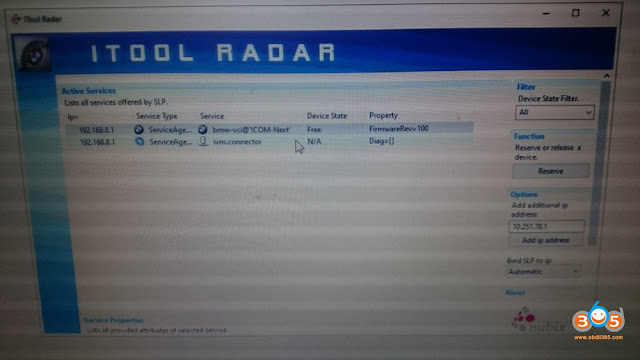
How to Solve ICOM Next cannot detect by Itool Radar?

 Problem: I have a BMW ICOM Next. I upgraded firmware for it. Now it cannot be find by itool radar software. I tried restore using USB flash method. However when I reset Icom by press and hold the pin hole near USB port, but does not happen on my Icom Next.

Solve ICOM Next cannot detect by Itool Radar 1

Solve ICOM Next cannot detect by Itool Radar 2

Solve ICOM Next cannot detect by Itool Radar 33

How to restore this Icom Next?

SOLVED by re-injecting via USB key files : “USER.settings” and “user.settings.log”  (can find in “Restore ICOM.7z” in ISTA installation package)
ICOM IP address was lost and now all OK !!!!


Credit to @ nono93


Any problem with BMW ICOM Next software, contact at www.obdii365.com.

9.07.2021

Fix BMW ISTA+ "Display" Function isn’t working?

 Problem: BMW ISTA+ “Display” Function isn’t working, files were downloaded from forum, all files were extracted and unblocked. Car can be identified and fault tree is shown. Everything works fine, but when I create a test plan for faults and click ‘display’, the next page is blank and ends up semi-freezing the program.


How to fix BMW ISTA+ “Display” Function is blank?

To do a fresh installation again,

Disconnect from internet,

Stop antivirus programs, windows defender or any software that may block files,

Use 7zip to extract all files then try again.

Follow the installation guide, pay attention to windows software like .net framework 3.0,3.5,4.0,4.5, VC++ all versions starting from 2003 up to at least 2015 x86 and 64 bit, and java.


You asked for the sitting for the Ediabas folder in Rheingold folder ediabas.ini , interface, it should be set to “REMOTE” not “STD:OBD”, as I am also using a INPA K+DCAN not an ICOM. Interface = STD:OBD must be set in the C: Ediabas folder only.

I am not sure if this has something to do with the screen freezing problem but I think it is worth to say.


For flashing: INPA should work and connection to the car verified that also will start the server, close INPA and start winkfp providing you installed spdaten properly.


PS: It is always recommended to install BMW software on a fresh copy of windows.


Alright, if you bought any of INPA K+DCAN or BMW ICOM from obdii365.com, remote assistance is available if any problem.


Read also:

How to configure BMW ICOM ISTA+ on INPA K+DCAN cable?

8.16.2021

How to Choose BMW ICOM Next Clone?

 Main benefits of an ICOM from our perspective:

1. Wireless diagnosis connection
2. Ease of use in a shop with multiple active connections
3. Self-hosted DHCP server for ethernet programming


There are several ICOM Next clone multiplexers available in obdii365.com, which one of them is the best?

SP269Out of production
SP269-1ICOM Next from a different manufacturer
SP269-B (SP269-BS)ICOM Next from a different manufacturer
SP269-B1 (SP269-B1S)Best quality ICOM Next clone. clone from original ICOM Next, best chip. fiber programming, faster speed, support older vehicle pre-2000. can do motorcycle as well.
SP269-C (SP269-C1)ICOM Next from a different manufacturer, cheaper, out of production.
SP269-DICOM Next using VXDIAG Solution, based on VX Manager driver, cheapest ICOM Next


All other ICOM Next clones are discontinued due to lack of chips.  Only SP269-B1 (and its software package) and SP269-D (its software package) are available.

Both have WiFi connection.

Both firmware can be updated.


ICOM Next clone SP269-B1 PCB

Price: $349 – $399

ICOM Next clone SP269-B1 PCB 1

  ICOM Next clone SP269-B1 PCB 2

ICOM Next clone SP269-B1 PCB 3


 ICOM Next clone SP269-B1 PCB 4


Some positive reviews:

1.

ICOM Next is faster than the old bmw icom. It is also better built IMHO.
And Next is WIFI available also.
It handles multiprogramming and coding quite nicely.
Gets the job done much faster if flashing the complete vehicle.
Another benefit to Next will be compatibility for future cars.


2.

I have icom next clone it works perfectly didn’t faced any issues.


3.

My Chinese NEXT is working for more than year and everything is OK so far. I paid much more for it , but ye you get what you paid for.


4.

It’s very good, the only thing you have to know it is the caps for usb enet etc, they won’t be really helpful bc they open all the time, However the quality is very good, enet cable is very long, OBD cable is very durable. Like it so much.


5.

My old icom A2 burned with long hours connectied by accident.But this ICOM Next seems to work well with a Heat dissipation


6.

Wifi connection is strong and stable, also the lan cable is work fine, 10 meters long enough. It is easy to make programming transmission control module EGS of BMW.


ICOM Next clone SP269-D

The advantage of this icom next is that the VX Manager can detect the device connection status.  And it is much cheaper then SP269-B1.  If you do want to keep it, then have a read on that website from where you downloaded VX Manager, you need to run other software before it will EMULATE an ICOM.

It takes $269 only with HDD.

ICOM Next clone SP269-D 1

ICOM Next clone SP269-D 2

For those with the Icom Next clone with VCXDoIP:

It’s a very powerful tool that can emulate all sorts of diag hardware for BMW, VAG, GM, BENZ, Porsche…

No need for DHCP server or router, it’s build in.

– Firmware update 1.49 is available via VXManager.

– For connection with ista-p you need to download BMW ptt driver from VXDiag, start Pass-Thru app in VXManager and emulate by loading dll. Make sure its set to SAEJ2534

– For connection with ista-d you need to set connect via icom/ethernet local network in ista settings.
If your license is valid you can also use cloud software

– For connection E-sys sometimes ZGW is not detected on first try, select connect via icom/ethernet tcp://<icom ip adress>:50160 than close connection. Now ZGW is available and connection can be made via vin or gateway url.

ICOM Next clone SP269-D

How to Update ICOM Next clone firmware SP269-D?


The ICOM Next choice would be Original ICOM Next > ICOM Next SP269-B1 > ICOM Next SP269-D


Read also: How to configure BMW ICOM Next WiFi?


www.obdii365.com

7.19.2021

BMW ICOM Next IP Problem Solution

 Got BMW ICOM NEXT not connecting to ISTA because it need firmware update I try to login with internet explorer but I didn’t get the setup page. I don’t know if it’s IP problem or what.

bmw-icom-next-ip-problem-1

Here is the itool radar shot:

bmw-icom-next-ip-problem-2

Advice:

Try that: 192.168.8.1:60080
LOG IN with following:
Username: root
Password: NZY11502  or NZY1150263


Download iTool Radar, connect the ICOM directly to your computer, and it should read the ip address from the ICOM.  Once you have the IP address, then you can proceed to log onto it using chrome or microsoft explorer browser with the provided credentials above.


If you did exactly as above, but with no luck. Then make an restore usb and reflash with this!

Download from this mega: BMW_ISPI_ICOM_NEXT_FW_3.15.03_files.txt

https://mega.nz/#!UJRllQRK!UIBddM2M8dXo2D5yf8Seluz-TuHiU4yCdnjvLiZOP8A


Then create a restore USB by following the following instructions:

A portable USB mass storage device (USB stick) that is at least compliant with USB 2.0 and is formatted with the FAT32 file system is required as additional hardware.

1. Create a text file user.settings with the following content: ConnectionMode=xxxxxx * 1 (default *2 : DHCP) Ip=xxx.xxx.xxx.xxx (default: 0.0.0.0)
Netmask= xxx.xxx.xxx.xxx (default: 0.0.0.0)
Gateway=xxx.xxx.xxx.xxx (default: 0.0.0.0)

Pay attention to the upper and lower case letters!

* 1 Possible parameters for ConnectionMode: STATIC_IP, DHCP, APIPA * 2 default = factory settings

2. Copy the file user.settings onto the USB stick.
3. If the ICOM NEXT A is ready for operation (SYSTEM LED permanently lights up green), the USB stick is to be connected to the unit (a connected MOST diagnosis adapter is to be unplugged). The red light chain starts after approx. 10 seconds (see 4.2.7.).

The saved settings are persistently overwritten. The green light chain starts once all the data has been updated. In this state, the unit can be addressed at the new IP (even without a restart). If the red light chain does not start, the user.settings file on the USB stick could not be read. If the green light stays off, an error has occurred while the LAN configuration was being written. For analysis purposes, the ICOM NEXT A saves the file user.settings.log with the error description to the USB stick.


or possibly as follows after that you copy the necessary files:

1.3. Connect the USB stick to the ICOM Next.


1.4. Press and hold the button located on the right-hand side of the ICOM Next, next to the OBD II cable connection socket.


1.5. Continue to hold the button, connect the device to the vehicle’s OBD II jack and keep the button pressed until the LEDs on the ICOM Next glow red.


1.6. Release the button and within five seconds, push the button three times. This starts the firmware update.


Note: The update may take several minutes. Do not disconnect the ICOM Next as long as any LED glows red.


1.7. When all LEDs on the ICOM Next have stopped glowing, the Emergency Firmware Update is complete. You can now disconnect the USB flash drive.

1.8. IMPORTANT: When the Emergency Firmware Update is finished, the ICOM Next must be connected to your network with a LAN cable in order to be reconfigured since all previous settings have been lost. If there is a “user.settings” file on the USB flash drive, it will be installed after the firmware update.


Final update:

This login is for original next or clone/orig A1, A2 for sure.

I try to login to ip: 192.168.8.1

LOG IN with following:

Username: root

Password: NZY1150263


Hope it helps!


Best source of BMW ICOM Next:

https://www.obdii365.com/wholesale/wifi-bmw-icom-next-a-b-c-with-laptop-lenovo-x220-plus-software-hdd.html

7.14.2021

How to clear/reset DME or EGS Adaptations using INPA

 How to Reset Adaptations


This describes how to clear/reset DME or EGS adaptations using INPA.
Be sure key is in position 2 with engine OFF.

MS43
  • E46
  • Engine
  • MS43
  • F4 Error
  • F7 Reset adaptions
  • F8 adaption Variants clearing
MS45.1
  • E46
  • Engine
  • MS45
  • F8 adaption
  • F9 All
GS20, GS8.60.2, GS8.60.4
  • E46
  • Transmission
  • GS20
  • F6 Activate
  • F3 Reset adaption values

How to flash a BMW DME or EGS with WinKFP?

Here is the guide to set up and flash a DME or EGS. Look at the steps starting at "Open up WinKFP" below.

- Install BMW Standard Tools 2.12 (EDIBAS, INPA, WinKFP, NCS Expert) and ensure they work with your car.
- WinKFP 5.1.6 (no earlier version than this)
- INPA 5 or higher
- Get the daten files (download, extract from Progman or Ista/p).
- E39 daten files: https://rapidshare.com/files/1672164095/E39_V41_Daten_Files.rar
- E46 daten files: https://rapidshare.com/files/4196534502/E46_V41_Daten_Files.rar
- See these instructions for extracting the daten files from Ista/p.
- http://forums.bimmerforums.com/forum/showthread.php?1590483-I-need-files-to-work-with-WinKPF-help-me

- Have jumper cables to another car battery supplying a minimum of 10A power.
- Connect the K-line cable to OBD port on car and USB port on computer.
- Turn the ignition key to position 2.
- Open up WinKFP.
- Select Configuration
- Uncheck Fast baudrate.
- To not increment the flash update counter, uncheck all UIF checkboxes.
- Click OK, cancel all the prompts about creating the new config files, click Ok to save to INI file.
- Select F1 Comfort Mode.
- Select F3 Update ZUSB.
- Select the ECU to update (ex: GD20, GD8604, MDS43, MDS451, etc.).
- Select F4 Enter VIN and paste in the full VIN for the car.
- Select F8 Done.
- Select F3 Prog. ZB-Update to detect current version and latest available update version.
- Click OK to begin flashing.
- It takes 43 minutes for MS45.1, 20 minutes for MS43, 7 minutes for GD20, 12 minutes for GD8604).
- After the confirmation message of flash update complete, close WinKFP.
- Wait one minute.
- Turn off the ignition key.
- Wait one minute.
- Turn on the ignition key to position 2.
- Clear adaptations using either INPA or PA Soft 1.4:
- Start INPA, select DME, Errors, Adaptations.
- Start PA Soft 1.4, select Units, select DME/DDE, select called "DME-EWS Adaptations".
- Clear any error codes in both DME and EGS. Turn off key for one minute. Try again. Do this until all are cleared.

7.12.2021

Program BMW Single ECU with Icom ISTA+ or Esys

 Problem:

there is a car 2020 year model, X750i . I want to program right Headlight only with Icom ISTA+ but there is I couldn't find single ecu programming option, 

Software is calculating for many control unit update, 

Im new with Icom, Is there any way to do it, Im a bit afraid to do full programming as its time consuming and may cause something wrong with other ECU's.

Program BMW Single ECU with Icom

It’s better to program a single ECU using ESYS and ENET cable. Ista cant program one module. Esys is much safer and is faster. ISTA does not allow for “Expert” mode for single ECU flashing. All G-Series car are safe to flash using ENET and ESys.