Showing posts with label bmw icom a2. Show all posts

7.19.2021

BMW ICOM Next IP Problem Solution

 Got BMW ICOM NEXT not connecting to ISTA because it need firmware update I try to login with internet explorer but I didn’t get the setup page. I don’t know if it’s IP problem or what.

bmw-icom-next-ip-problem-1

Here is the itool radar shot:

bmw-icom-next-ip-problem-2

Advice:

Try that: 192.168.8.1:60080
LOG IN with following:
Username: root
Password: NZY11502  or NZY1150263


Download iTool Radar, connect the ICOM directly to your computer, and it should read the ip address from the ICOM.  Once you have the IP address, then you can proceed to log onto it using chrome or microsoft explorer browser with the provided credentials above.


If you did exactly as above, but with no luck. Then make an restore usb and reflash with this!

Download from this mega: BMW_ISPI_ICOM_NEXT_FW_3.15.03_files.txt

https://mega.nz/#!UJRllQRK!UIBddM2M8dXo2D5yf8Seluz-TuHiU4yCdnjvLiZOP8A


Then create a restore USB by following the following instructions:

A portable USB mass storage device (USB stick) that is at least compliant with USB 2.0 and is formatted with the FAT32 file system is required as additional hardware.

1. Create a text file user.settings with the following content: ConnectionMode=xxxxxx * 1 (default *2 : DHCP) Ip=xxx.xxx.xxx.xxx (default: 0.0.0.0)
Netmask= xxx.xxx.xxx.xxx (default: 0.0.0.0)
Gateway=xxx.xxx.xxx.xxx (default: 0.0.0.0)

Pay attention to the upper and lower case letters!

* 1 Possible parameters for ConnectionMode: STATIC_IP, DHCP, APIPA * 2 default = factory settings

2. Copy the file user.settings onto the USB stick.
3. If the ICOM NEXT A is ready for operation (SYSTEM LED permanently lights up green), the USB stick is to be connected to the unit (a connected MOST diagnosis adapter is to be unplugged). The red light chain starts after approx. 10 seconds (see 4.2.7.).

The saved settings are persistently overwritten. The green light chain starts once all the data has been updated. In this state, the unit can be addressed at the new IP (even without a restart). If the red light chain does not start, the user.settings file on the USB stick could not be read. If the green light stays off, an error has occurred while the LAN configuration was being written. For analysis purposes, the ICOM NEXT A saves the file user.settings.log with the error description to the USB stick.


or possibly as follows after that you copy the necessary files:

1.3. Connect the USB stick to the ICOM Next.


1.4. Press and hold the button located on the right-hand side of the ICOM Next, next to the OBD II cable connection socket.


1.5. Continue to hold the button, connect the device to the vehicle’s OBD II jack and keep the button pressed until the LEDs on the ICOM Next glow red.


1.6. Release the button and within five seconds, push the button three times. This starts the firmware update.


Note: The update may take several minutes. Do not disconnect the ICOM Next as long as any LED glows red.


1.7. When all LEDs on the ICOM Next have stopped glowing, the Emergency Firmware Update is complete. You can now disconnect the USB flash drive.

1.8. IMPORTANT: When the Emergency Firmware Update is finished, the ICOM Next must be connected to your network with a LAN cable in order to be reconfigured since all previous settings have been lost. If there is a “user.settings” file on the USB flash drive, it will be installed after the firmware update.


Final update:

This login is for original next or clone/orig A1, A2 for sure.

I try to login to ip: 192.168.8.1

LOG IN with following:

Username: root

Password: NZY1150263


Hope it helps!


Best source of BMW ICOM Next:

https://www.obdii365.com/wholesale/wifi-bmw-icom-next-a-b-c-with-laptop-lenovo-x220-plus-software-hdd.html

6.15.2021

BMW ICOM A2 LAN Not Working After Reset Factory Setting

 Problem:

How to restore BMW icom a2 after a factory reset? LAN doesn’t work after reset.


Answer:

You need to restore it with usb drive, here is the file you need and how to do it…… first restore then update …. you should search what is the last version of ista that support F


https://mega.nz/file/tBYzVSBY#imbaH6NeLbV7n7dutVb3BMXYMGLVw0Ear-HqTXUUZTs

icom_01_37_00 .rar

23.2 MB


  1. Update firmware BMW ICOM A1-A2-A3 (The next paragraph will list the details)


  1. BMW ICOM A1-A2-A3 Factory Restore (The last paragraph will list the details)


Step-by-step procedure on BMW ICOM A1-A2-A3 Factory Restore

Perform a factory reset if you face one of the following issues:

 -Single ICOM with at least one green LED, but does not become visible in ISTA

- Single ICOM with at least one green LED, but it is not available in Connection Manager and

therefore cannot be reserved

- Single ICOM is not working in WLAN

 -Single ICOM with at least one green LED, but Firmware Update is not possible neither via

ISTA nor via ICOM Web GUI


Prerequisites:

 -USB flash drive. 2.0 with a minimum of 60 MB free space formatted with FAT32 (e.g. by

Microsoft Windows)

- “ICOM_Restore.bin” file, which can be downloaded from this page. Make sure you always

use the latest file for the factory reset


Fix: Perform the following steps:

  1. Copy the “ICOM_Restore.bin” file to the USB flash drive
  2. Disconnect the network cable from ICOM A
  3. If ICOM A is placed in an OBD II jack of the vehicle, then pull it out (ICOM A must have status off”)
  4. Connect the USB flash drive to ICOM A
  5. This step has to be done in a maximum time of 5 sec or the update process will not start:

 Press the reset button on the ICOM A and hold it pressed:

reset-icom-after-factory-reset-1

Connect ICOM A to the OBD II jack while the button is pressed (all LED will become red)

 Release the reset button and then press it 3 times

 The LEDs will flash red (if not, repeat the above steps)

 The process is finished after 3 minutes

 When the system LED is shining green, the update process is finished successfully

 Disconnect to USB flash drive

  1. Factory reset is done
  2. Disconnect the ICOM A
  3. Connect the LAN cable between the ICOM A and the network
  4. Connect the ICOM A to a vehicle or external power supply
  5. ICOM becomes visible now again in ISTA / work correctly again


Step-by-step procedure on BMW ICOM Upgrade:

  1. First step is to make sure the LAN adapter is set to DHCP and is enabled, here is how to do

it:

  • Open Network Connections by clicking the Start button, and then clicking Control Panel.

In the search box, type adapter, and then, under Network and Sharing Center, click View

network connections.

  • Right-click the connection that you want to change, and then click Properties. If you’re

prompted for an administrator password or confirmation, type the password or provide

confirmation.

  • Click the Networking tab. Under This connection uses the following items, click either

Internet Protocol Version 4 (TCP/IPv4) or Internet Protocol Version 6 (TCP/IPv6), and then

click Properties.

reset-icom-after-factory-reset-2


The Network Connection Properties dialog box

  • To get IP settings automatically using DHCP, click Obtain an IP address automatically,

and then click OK.

  • To get a DNS server address automatically using DHCP, click Obtain DNS server

address automatically, and then click OK.

reset-icom-after-factory-reset-3


  1. Connect ICOM to the car and to the UTP cable provided in the package

– there should be 4 green leds powered on

  1. Check that the network adapter has an IP like 169.254….
  2. Using the web browser go to http://169.254.92.38:60080

User: root Password: NZY1150263

reset-icom-after-factory-reset-4

  1. Select channels menu and click only once on the button available there:

reset-icom-after-factory-reset-5


  1. Go to firmware update and update with ICOM-BootImage-01-11-01.bin, then with ICOMApplicationImage-

01-15-01.bin, don’t reboot between parts:

– at the image type we have selected System, now Browse for the ICOM-BootImage-01-11-01.bin and

click on “Send the file” button and wait

reset-icom-after-factory-reset-6


– click on Yes and wait

reset-icom-after-factory-reset-7


-now click on Update Firmware to go and update with ICOM-ApplicationImage-01-15-01.bin

reset-icom-after-factory-reset-8


– at Image type check the option called APPLICATION and Browse for ICOM-ApplicationImage-01-15-

01.bin and click on “Send the file” button and wait

reset-icom-after-factory-reset-9


– click on Yes and wait

reset-icom-after-factory-reset-10


  1. Reboot ICOM

reset-icom-after-factory-reset-11

reset-icom-after-factory-reset-12

  1. After at least 2 minutes press on Home button and go to Update Firmware and check to see

the firmware versions for boot is 1.11.01 and application is 1.15.01:

reset-icom-after-factory-reset-13

Alright, hope it helps!


FYI, this link includes all BMW ICOM NEXT source:

https://www.obdii365.com/producttags/bmw-icom-next.html


http://blog.obdii365.com/2021/06/16/restore-bmw-icom-a2-after-factory-reset/

6.07.2021

BMW ICOM Next Firmware Update to 1.44

 Available with BMW ICOM firmware update with latest ISTA, I’m posting here the images for both ICOM A2 and original Next firmware.

Upload via x.x.x.x:60080 url.


https://mega.nz/folder/qy5EmZwK#-cqyZ6fFpS-EyUvDzOVP_Q

including ICOM A2 and ICOM Next

ICOM applicationImage 01.44.00

ICOM BootImage 01.28.00

icom firmware 1.44 download 1

Suitable ICOM A2: Item No. SP168-D


ICOM Next app 010108

ICOM Next rootfs 010106

icom firmware 1.44 download 2

Suitable ICOM Next: SP269-1, SP269-B1S, SP269-B, SP269-B1


How to update BMW ICOM firmware V1.44?


1.Download BMW ICOM V1.44 firmware update file

  1. Please connect BMW ICOM A2 with computer using internet cable, power ICOM by 12V power adapter or from 1x DLC
  2. Unzip ICOM FW v1.44 upgrade files.
  3. Open IE Internet Explorer, enter address http://169.254.33.45:60080/ if you update Perfect version BMW ICOM, log in with

username: root

password: NZY1150263 
PS: to upgrade common version ICOM A2 A1, browse http://169.254.92.38:60080/  and the next steps are the same.

  1. Click “Update Firmware”, you will see ICOM firmware version information.


  1. Click “Browse” to select file “ICOM-BootImage-01-28-00.bin”, set image type as “SYSTEM”, click “Send the file”.
  2. When it pops up “Write the image file to the flash?”, click “Yes”, then ICOM indicator light will turn red.
  3. When it pops up “The SYSTEM IMAGE update was successful”, click “Update Firmware”.
  4. Choose “ICOM-ApplicationImage-01-44-00.bin”, set image type as “APPLICATION”, click “Send the file”, it will spend several minutes since the file is a little bit large.
  5. When it pops up “Write the image file to the flash?” click “Yes”, then the ICOM indicator light will turn red for the second times.
  6. When it finish upgrading, click “reboot”.
  7. Click “Home” – “Update Firmware”, you will find ICOM A2 firmware update to the newest version:
    Current SYSTEM IMAGE version: 01.28.00
    Current APPLICATION IMAGE version: 01.44.00


Additional Note:
Please be sure your computer is to obtain IP address automatically.


Have fun!


www.obdii365.com

5.23.2021

How to Repair BMW ICOM Next Clone?

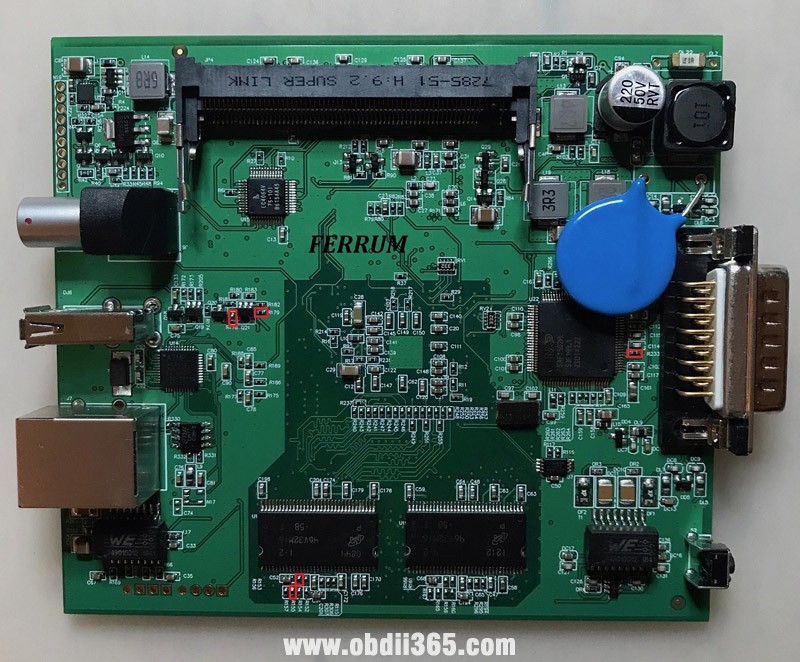
 Lots of people need ICOM because they have no more desire for various cables.  Here is a DIY BMW ICOM Next clone modification guide to solve errors made by the manufacturer affect the connection with machines of different years and models.

ICOM sees only one 128MB memory bank, and it should be 256MB. After fixing all the errors, you can check the work with cars and motorcycles of different years and models. Diagnostics of coding and programming were checked, no errors were detected.


Disclaimer: Thanks Ferrum for all the information. We are not holding responsibility for the damage.


All manufacturer errors  NEW ICOM NEXT China clone
swap

R292<->R293 

R155<->R156

R178<->R179

solder

R15  52ом 

replace

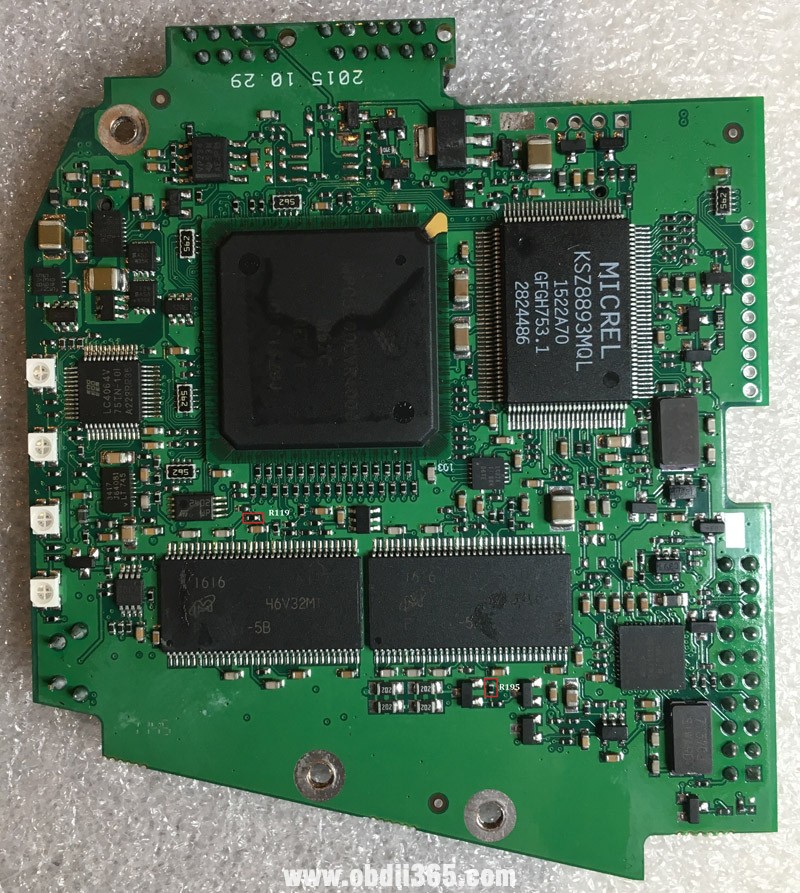
R119  1к

R280 R285 R195  38к

Y4 active  33000  3.3v

*(33.333 must be replaced by 33,000. Antennas need to be glued from the outside to the side plates)


repair-icom-next-clone-1

repair-icom-next-clone-2

repair-icom-next-clone-3

repair-icom-next-clone-4

repair-icom-next-clone-5

There are ICOM2 clones with the same manufacturing errors. You can understand this by the amount of memory or if R195 = 0kom

Such a board has exactly the same errors. R119 is installed 10kom instead of 1kom. This disables one memory bank.

repair-icom-next-clone-6


Test and feedback:

Reset switch works, resistors replaced, serial changed. Icom now sees 256 memories, managed to update ICOM Next to version 03.15.04. Now icom starts up faster.

repair-icom-next-clone-7

repair-icom-next-clone-8

repair-icom-next-clone-9


9.20.2019

How to change BMW ICOM A2 serial number in 24c02?

For ICOM A2:

All ICOM from China A1
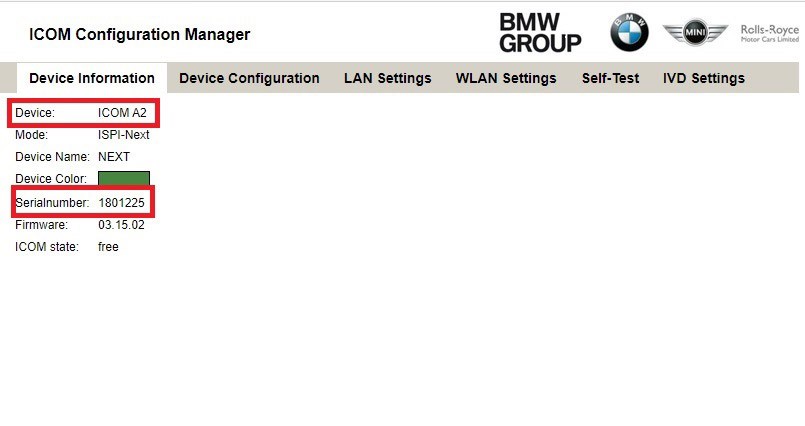
The firmware version is determined by the ICOM serial number, in China they are all the same 1120134. To change ICOM2, you need to change the serial number in 24c02 to the serial number from the range 1801201, and then restore the ICOM  from the restore.bin
Do not use serial numbers like 1111111, after restoration you will get a brick!!

in detail..

Unsolder 24c02 and change the serial number icom 1120134 to 1801201
change-bmw-icom-sn-1

change-bmw-icom-sn-2

change-bmw-icom-sn-3
Solder 24c02 and perform ICOM_Restore:
1.Copy to ICOM_Restore.bin flash drive
2.Insert flash drive in icom
3.Press the button and turn on the power, all LEDs will turn red and then release
the button and press it three times.
Wait until recovery is complete!!!
After recovery, update the firmware icom!
change-bmw-icom-sn-4 
Thanks to for his contribution

IT’S YOUR OWN RISK.

Note: another method to update icom a2 firmware: http://blog.obdii365.com/2016/01/04/free-bmw-icom-a1-a2-clone-v1-40/ (done by download link)


For ICOM Next:

Firmware update is done by download link:
it’s ICOM Next firmware 1.40.05

steps:

  1. Please use internet cable to connect ICOM Next with the computer, and charge ICOM Next via 12V power adapter or connect ICOM Next to BMW vehicle for power.

  1. Use IE Internet Explorer to open http://169.254.33.45:60080/, username/password: root/NZY1150263

  1. Select “Update Firmware”, you can see ICOM firmware version information.

  1. Select “Browse” to select file “ICOM-BootImage-01-25-02.bin”, set image type as “SYSTEM”, click “Send the file”.

  1. Select “Yes” when you get prompt “Write the image file to the flash?”, then ICOM indicator light will turn red.

  1. When it shows “The SYSTEM IMAGE update was successful”, click “Update Firmware”.

  1. Choose “ICOM-ApplicationImage-01-40-05.bin”, set image type “APPLICATION”, click “Send the file”, this will be done in several minutes please be patient.

  1. click “Yes” when you get prompt “Write the image file to the flash?”, then the ICOM indicator light will turn red again.
Complete updating, click “reboot”.

  1. Click “Home” – “Update Firmware”, you will see ICOM Next firmware display the newest version.

4.15.2019

BMW ICOM Next ISTA-P "enter activation key" Solution

Problem:
I have finally been able to get my bmw icom next to show up and communicate with a vehicle, however, when I go to use ista-p, there is a box that pops up stating enter activation key (free version). See attached photo.
bmw-icom-next-activation-key
Obdii365.com solution:

Please copy and paste the ISTA-P activate key to corresponding area. 

10.30.2018

ISTA+ V4.12 Expert Mode Activation, Single Module Programming

Does anyone have a solution for Ista+ Programming Expert Mode?
No expert mode available yet for ISTA+ v4.11.12.

This will be an issue in feature, expert mode can get you out of unpleasant work.
For example if you update i update a whole g11 with ista p and if you update kafas you lose fsc codes, so if i deselected kafas, fsc stayed unharmed. But you can do that now with ista+
One more important remark is that esys wont let you update a module that is allready updated, but ista let you do it, so after 7/11 psdzdate you are stuck with this issue too…

Best to use a router for programming HUH etc through ista
Or you can just use tftpd32 (or tftpd64 if 64bit OS)

Update: ISTA+ 4.12.12 has the expert mode – Confirmed!
ista-p-expert-mode-1

ista-p-expert-mode-2

ista-p-expert-mode-3

ista-p-expert-mode-4

ista-p-expert-mode-5
Note that Ista+ expert mode is Ista P expert mode
ista-p-v-4-12
The difference between Expert mode and Ista plus?

The difference is his loader allows for hiding of modules
Ista plus does not he or someone may be working on an alternate loader to hide retrofitted modules but as it so far look into ESYS for that only option I can think of right now last istap that had a lot a F ,G or I cars was 3.64.2 as 3.65.0 only had like 2 model forget exactly which ones you have to double or make link dos command to point to istaplus PSdZ folder

Some new solutions to activate ISTA-P expert mode ?

so updating the folders in ISTA-P with the files from PSdz swe will not do the trick. You will be inserting back all the missing vehicles. I saw in the main series you will have to rename F, G, I series files to reflect.

after copy PSDz (data_swi) to pszdata ISTA P with correction data in mainseries, add data F001, F10,…etc = same result
ISTA P shows window that car is not programmable (only ISTA+)
trick is somewhere else

this is Ista p expert mode confirmed to work 100%


Why not just use a earlier version of ISTA-P (such as 4.08 or 4.10) to do single module coding?
Because what i am getting is there are problematic files out there that BMW knows about and in the latest version of ISTA+ it can stop from a certain update and keep the module on the one that works. So could you not reverse populate for example take the p-files from a later version to a previous but you would need all files and folders for example. anyone with more can chime in


Anyone has good success with Ista P expert mode?
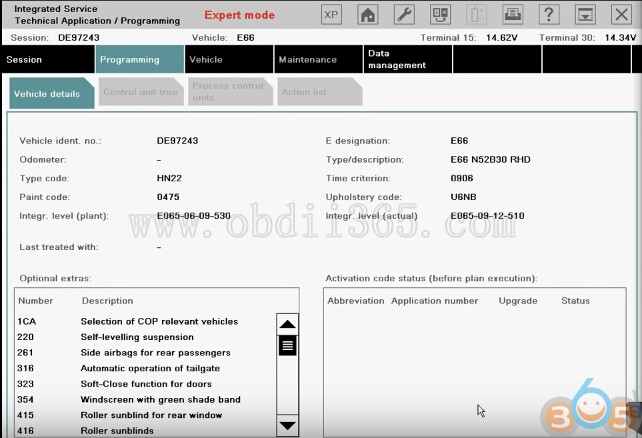
Yep. Have tested Expert Mode on BMW e66
Here is the details…
Select Create new session. Click on Select ISTA/P server automatically. Click on Continue.
ista-p-expert-mode-bmw-e66-1
Click on ICOM Next/ICOM A2 emulator & Connect to continue.
ista-p-expert-mode-bmw-e66-2
Connecting…
Click on on the 4th button at the top, to get the information of Connection manager, then close that interface.
Determining model series…(E66)
Data being checked…
Checking vehicle identification number…(DE97243)
Control unit replaced?
Click on No, and also click on “Before starting vehicle programming…” click on Next.
ista-p-expert-mode-bmw-e66-3
Control unit change over.
ista-p-expert-mode-bmw-e66-4
Determining…
Identifying fitted control units…
Determining target context…
Calculating measure plan…

Go to Control unit tree, and select ZGM.
ista-p-expert-mode-bmw-e66-5
Edit plan show as follows:
ista-p-expert-mode-bmw-e66-6
Go to Immediate measures.
Click on Hide all actions.
ista-p-expert-mode-bmw-e66-7
Go to Edit plan. No cross on Program P. Then close it.
ista-p-expert-mode-bmw-e66-8
Select SZL.
ista-p-expert-mode-bmw-e66-9
Edit plan show as follows:
ista-p-expert-mode-bmw-e66-10
Go to Immediate measures.
Click on Hide all actions.
Back to Edit plan. No cross there. Then close it.
ista-p-expert-mode-bmw-e66-11

Done!