1.15.2016

BMW ICOM A2 vs. BMW ICOM diagnostic scanner

BMW ICOM vs. BMW ICOM A2

Products
BMW ICOM
BMW ICOM A2
Item NO
SP101
SP110
SP168-BA SP168-BO
Features
best quality made by Yanhua Company, without software
Not made by Yanhua Company, without software
Full set with external HDD
General version, most users buy SP168-B. SP168-B (ICOM A2) has the same hardware SN as ICOM A1.
Apply new hardware SN which different from SP168-B/C, and work very well. SP168-BA packed not with software, SP168-BO contains HDD.
Wifi Version, which allows diagnosis and programming via wireless connection.
ICOM VS ICOM A2
1.       ICOM A2 support WiFi connection.
2.       ICOM A2 has better computer compatibility, 2014.9 BMW ICOM A2+B+C support almost 95% PCs on the world with Intel chip (I3/I5/I7 series).
3. ICOM A2 is especially modified for vehicles with OBD port and boasts a significantly more powerful processor and a 4GB memory, ensuring faster running speed and wider storage space.
4. Newest BMW ICOM A2+B+C support latest BMW cars made in 2013 and most MINI Cooper in full system diagnose and offline programming.
5. ICOM A2 features an Aluminum case, which is strong and solid to protect the machine from damage in harsh environments.
6. ICOM C for old series come with a diagnostics socket, and will be additionally equipped with a long cable around 20cm, which improves the connection of the ICOM A2.
7. To protect the MOST connector, the ICOM B for vehicles with optical MOST access will be equipped with a soft cover made of rubber instead of plastic cap.
OS
All ICOM and ICOM A2 OS requirement:
1.        Internal Hard disk comes with Windows XP
2.        Moveable Hard Disk run with Win7
Language
All ICOM and ICOM A2 are Multilanguage available.
Function
Generally speaking, ICOM and ICOM A2 support diagnosis and programming.


1.13.2016

(Solved) BMW ICOM A2 show voltage, unable to program

Several days ago, I send the following email to obdii365 engineer, with BMW ICOM A2 low voltage problem when do programming. This mail content as follows: 

When I use BMW ICOM A2 wifi do programming, car engine off or on, shows lower voltage. I have tried with other ISID too, virtual and native on DELL D630.
Reported values by ICOM A2 with engine off 11.3 , with engine on 12.8

I have tested other BMW diagnostics tool, it shows good voltage.
BMW reprogramming requires at least 13V, so I’m unable to do programming, I guess if I use other car for supply voltage to my car, will not be enough too.

Is there a firmware fix or else for this BMW ICOM? Is hardware fault?

bmw-icom-a2-low-voltage-1

bmw-icom-a2-low-voltage-2

Obdii365.com reply me as follows:

You need to get one additional MST-80 Voltage Regulator Diagnostic Tool, when you use ICOM A2 to program BMW, it will use almost 3 hours or more, show low battery is inevitable, connect to a MST-80 with a Battery Charger and Stability Voltage Equipment to keep ICOM A2 stable voltage.


MST-80 Voltage Regulator Diagnostic Tool


2015 BMW ICOM Rheingold WIFI setting guide and using tips

Our best quality BMW ICOM A2+B+C(Item No:SP168) ISTA-D ISTA-P diagnostic system has been added WIFI wireless connections. Following are the instruction on WIFI setting and using tips.

How to configure 2015 BMW ICOM A2 WIFI wireless connection?

Computer requirement:
Almost 95% laptops on the world with Intel chip (I3/I5/I7 series) and have 4GB memory

1. Insert WIFI USB D-link into the computer via USB port
bmw-icom-a2-wifi-setting-1
2. Turn off the computer built-in WIFI or additional WIFI resources. Make sure only BMW ICOM WIFI USB exist on the computer. Meanwhile, disable both Internet network and local area connection.


3. Then power on computer.

4. Open “Network Connections” program to check there is no other existing Internet and Local Area connection.
bmw-icom-a2-wifi-setting-2

NOTE: Do not disable DWA-131 which is the ICOM WIFI USB. If it displays “X” mark, ignore it.


5. Run BMW ICOM Rheingold ISTA-D ISTA-P software, tick “WIFI for ICOM”

bmw-icom-a2-wifi-setting-3

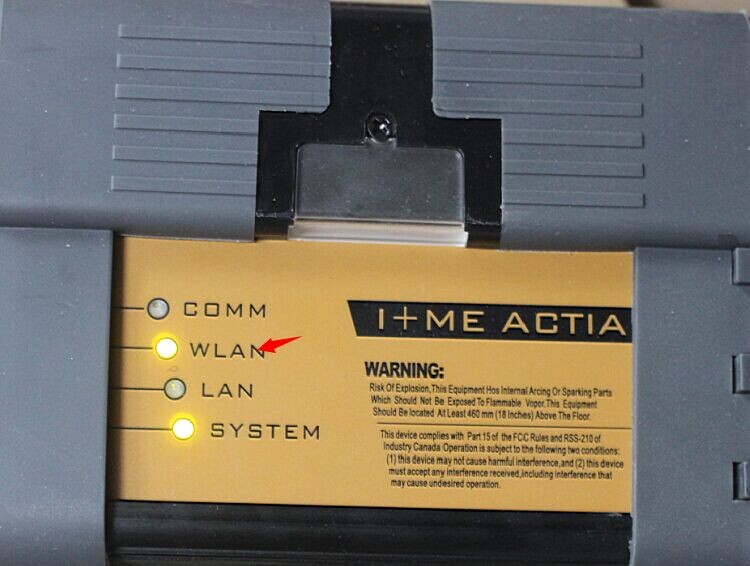
6. Now connect your ICOM firmware with your car. Wait for 20-60 second, then you will see the light on the ICOM main unit will flash slowly or do not flash which means the good communication is built between the USB WIFI and ICOM A2 WIFI.

bmw-icom-a2-wifi-setting-4

7. Start using diagnostic or programming software. Click “OK” to accept the system prompt

bmw-icom-a2-wifi-setting-5

8. The ICOM Rheingold main interface can not be closed, but only be minimized.

bmw-icom-a2-wifi-setting-6

9. ICOM software will detect and recognize ICOM firmware.

bmw-icom-a2-wifi-setting-7


2015 WIFI BMW ICOM diagnostic& programming system connection diagram:


bmw-icom-a2-connection


2015 BMW ICOM WIFI using tips:

1). If you need perform ECU programming function with ICOM, you’d better using USB connection instead of WIFI wireless connection.
2). Both our customers and engineers have tested and recommend to use 2015.1BMW ICOM Rheingold ISTA-D ISTA-P 256GB SSD Solid-State Disk to work with ICOM A+B+C which carries out more stable programming, especially for modifying BMW cars.
3). Our BMW ICOM WIFI SP168 comes with default 2015.6 software HDD, if you need 2015.1V ICOM SSD software, please contact our customer service first and inform us the language you need.


1.11.2016

How to set up BMW ICOM A2 Rheingold ISTA on VMware

Here is a step-by-step guide of configuring BMW ICOM Rheingold ISTA-D ISTA-P diagnostic & programming software on BMW ICOM A2+B+C diagnostic system.

Tool needed:
ICOM Rheingold software HDD

NOTE:
As for BMW ICOM Rheingold software, we recommend 2015.1V Rheingold ISTA-D 3.47 ISTA-P 54.3 software HDD which performs more stable.


Instruction:
The configuration is based on Virtual Machine.

1. Open used for connection network adapter properties, then “Internet Protocol Version 4 (TCP/IPv4)” properties, then enter 169.254.1.1 for “IP address” and 255.255.0.0 for “Subnet mask”
 bmw-icom-rheingold-ista-on-vmware-1
2. If VMware is installed, open Virtual Network Editor and disconnect from the host any adapters with Subnet address 169.254.0.0

bmw-icom-rheingold-ista-on-vmware-2


3. Open C://EDIABAS/BIN/EDIABAS.INI with Notepad and check for “Port=6801” in TCP settings.

bmw-icom-rheingold-ista-on-vmware-3

4. Set up ICOM A, ICOM B and ICOM C emulators, and connect BWM ICOM with vehicle and PC.
bmw-icom-a2


5. Run BMW ICOM Rheingold ISTA-D ISTA-P software shortcut on start menu, wait until it boots, then press “Settings” icon the top of the program
6. Select “VCI Config” (VCI Configuration) Tab and tick “HO-ICOM/ENET local and ISIS network”, press “OK”
 bmw-icom-rheingold-ista-on-vmware-4

7. Go to “Operations” menu, the “Read Out Vehicle Data” and “Complete Identification”

bmw-icom-rheingold-ista-on-vmware-5

8. Select ICOM connection from the list and press “Set up connection” button. The Rheingold is detecting vehicle and vehicle identification is in progress.

bmw-icom-rheingold-ista-on-vmware-6
bmw-icom-rheingold-ista-on-vmware-7


Configuration is done. Start running software and diagnose/program BMW cars. 
bmw-icom-rheingold-ista-on-vmware-8
bmw-icom-rheingold-ista-on-vmware-9


1.08.2016

BMW ICOM A2 ISTA-D starting problem (fixed)

Problem:
After connected the BMW ICOM diagnostic tool with vehicle and computer, starting running ISTA software, but he cannot open the ISTA-D software, the ISTA-D software soon fade out after booting. The system pops up an error message as the same time.

"Please wait while ISTA-D is starting!
Don't close ISPI-NEXT Admin Tools when ISTA is Running!"

bmw-icom-a2-ista-d-1

bmw-icom-a2-ista-d-2

Solution by obdii365 technician

Turn off the computer/laptop
Well connect the BMW ICOM A2 diagnostic system hardware with vehicle 
Wait the communication indicator lights on the bmw icom emulator flash
Then connect BMW ICOM to computer via LAN cable
Power on the computer
Open the ISTA-D software again
If the system prompts to tick OK, DO NOT tick OK, wait 1-2 minutes, the system will automatically enter into the ISTA software main interface
Note:
And tick ISTA-DE option in the button, it will make running speed faster 
bmw-icom-a2-ista-d-3


The ISTA needs some time to boot, do not close the ISTA-D software when it is not fulled working and do not open another software program windows at this time.


1.07.2016

Read Wiring diagram with BMW ICOM ISTA-D ISTA-P

A detail wiring diagram of BMW certain control module will help a lot in accessing and troubleshooting control unit. BMW ICOM ISTA-D ISTA-P engineering software will make things easier.
What you need:
WIFI BMW ICOM A2+B+C diagnostic tool hardware
BMW ICOM software HDD (ISTA-D 3.46.30 ISTA-P 54.2.002 )
A laptop running Win 7 O/S
Well install BMW ICOM ISTA/D ISTA/P with engineering and developing software on laptop
Setup ICOM A, B and C and then connect BMW ICOM A2+B+C diagnostic system with
Run BMW ICOM software HDD
Click “Product structure” Tab to select specific module, Drive control unit for example
Read BMW Wiring diagram with BMW ICOM ISTA-D ISTA-P
Click “Function structure” Tab, select “Steering wheel heating”, press “Start search” button on the right button corner
Read BMW Wiring diagram with BMW ICOM ISTA-D ISTA-P
Click on “SSP Steering wheel heater” option, press “Display” button on the right button corner
Read BMW Wiring diagram with BMW ICOM ISTA-D ISTA-P
The BMW ICOM ISTA-D ISTA-P software HDD program will display the wiring diagram of the control unit you selected previously
Read BMW Wiring diagram with BMW ICOM ISTA-D ISTA-P
Click on each component, you are able to view the detail wiring diagram of specific part of your vehicle
Read BMW Wiring diagram with BMW ICOM ISTA-D ISTA-P
Press the magnifying icon, the wiring diagram will display in larger screen.
Read BMW Wiring diagram with BMW ICOM ISTA-D ISTA-P
http://www.obdii365.com/producttags/bmw+icom/

1.04.2016

How to update BMW ICOM A1, A2 firmware to V1.40

Good news!!! BMW ICOM A1, A2 Clone firmware has newly upgraded to current 1.40.05    1.25.02 in obdii365.com.
Current SYSTEM IMAGE version 01.25.02
Current APPLICATION IMAGE version 01.40.05
bmw-icom-firmware-140
Note: 2015.11V BMW ICOM Rheingold ISTA-D ISTA-P version needs newest V1.40.05 firmware support.

Which specific version of BMW ICOM hardware to update firmware?
Perfect version ICOM A2: Item NO SP168-BA 
Other version ICOM A2 wifi: SP168-BSP168 
BMW ICOM A1: SP101-B

Free download BMW ICOM A1/A2 firmware V1.40/1.25 bin files
How to update BMW ICOM A1,A2 firmware to V1.40/1.25?
Important Note:
To set your computer to automatically obtain IP address.

Steps
  1. Using LAN cable to connect ICOM A2/A1 with computer, using 12V power adapter or connecting ICOM device with BMW to supply power for ICOM A2/A1.

  1. Extract ICOM A1 A2 fw 1.40 upgrade files.
bmw-icom-firmware-140-1
  1. Open IE Internet Explorer, for perfect version ICOM (SP168-BA, browse address
http://169.254.33.45:60080/, log in with username/password: root/NZY1150263;
For other version of ICOM A2 or A1 (NO SP168-C, SP168-B, SP168 and SP168-D), browse http://169.254.92.38:60080/, the login username and password are the same.
bmw-icom-firmware-update-1
3. Click “Update Firmware“, you will see ICOM firmware version information.
bmw-icom-firmware-update-2
  1. Click “Browse” to select file “ICOM-BootImage-01-24-00.bin“, set image type as “SYSTEM“, click “Send the file“.
  2. When “Write the image file to the flash?” pops up, click “Yes”, then ICOM indicator will turn red.
  3. When “The SYSTEM IMAGE update was successful” pops up, click “Update Firmware”.
  4. Choose “ICOM-ApplicationImage-01-38-01.bin“, set image type as “APPLICATION“, click “Send the file“, it will cost several minutes because the file is a little bit large.
  5. When “Write the image file to the flash?” pops up, click “Yes”, then the ICOM indicator will turn red for the second times.
  6. When upgrade complete, click “reboot“.
  7. Click “Home” – “Update Firmware” to check whether ICOM A2 firmware update to the newest version:
Current SYSTEM IMAGE version 01.25.02
Current APPLICATION IMAGE version 01.40.05
Note:
1. Setting up your computer to obtain an IP address automatically
2. Firstly choose the smaller file “ICOM-BootImage-01-13-00.bin” , then set image type to SYSTEM;
3. Secondly choose the bigger file “ICOM-ApplicationImage-01-18-00.bin”, then set image type to APPLICATION.